Log in to Papeez
Log in with an email code, a password, your organization's SSO or from your LMS.
Written By Florian Barral
Last updated 9 days ago
Papeez offers several ways to log in. They all start from the same page: enter your email address, and Papeez then shows the methods available to you.
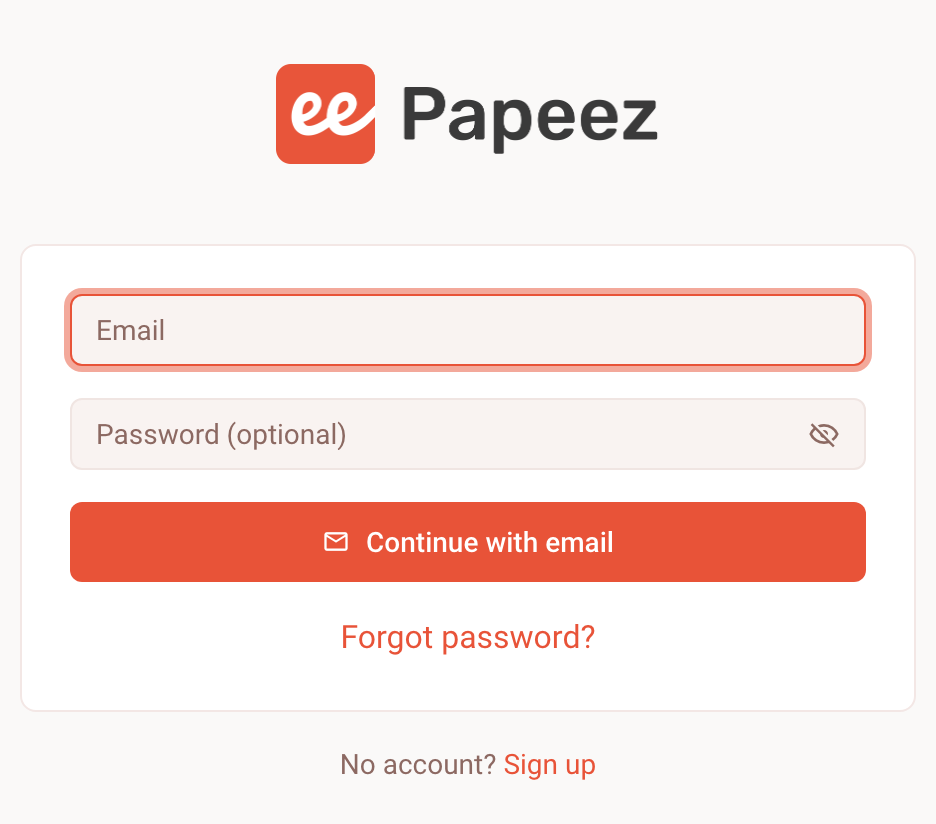
With a code sent by email
Enter your email address, without a password.
Click Continue with email.
Open the email you received. Click the login link, or copy the 8-digit code into the Enter code field, then click Continue with login code.
The link and the code can only be used once. You don't need a password.
With a password
If you have set a password (see Edit your profile and password), enter it in the Password (optional) field, then click Continue with password.
Lost your password? Click Forgot password? to reset it, or simply log in with the code sent by email.
With your organization's SSO
If your organization uses SSO (Google, Microsoft, CAS…), a Continue with … button appears as soon as you enter your email address. Click it to log in with your organization's account. See SSO integration.
From your LMS
When Papeez is connected to your LMS (Moodle, Canvas, Blackboard…), opening a Papeez activity in your course logs you in directly and opens the exam. See LTI integration for any LMS.
Frequently asked questions
I don't receive the login email
I don't receive the login email
Check the address you entered and your spam folder. You can also log in with a password if you have set one.
The "Link Expired" message appears
The "Link Expired" message appears
The login link has already been used or is no longer valid. Papeez automatically sends you a new one: check your inbox.
The "Too many attempts" message appears
The "Too many attempts" message appears
After several wrong codes, entry is blocked for a while. Wait one minute, then try again with the latest code you received.
The "Unauthorized domain" message appears
The "Unauthorized domain" message appears
Your email address is not accepted for your organization's SSO. Use your work email address, or contact your organization's administrator. See SSO integration.
Was this helpful?
Still need help? Ask the team