View grades and submissions
Find each participant's grade, their graded submission and their scanned answer sheet.
Written By Florian Barral
Last updated 2 days ago
As soon as an answer sheet is scanned and matched to a participant, their grade appears in the Results › Grades tab.
The list of grades
The page opens on the Distribution of grades, then the list of graded participants, each with their Questions answered and their Grade. You can search for a participant or change the Order of the list. Hover over the file icon of a row to see the scanned page.
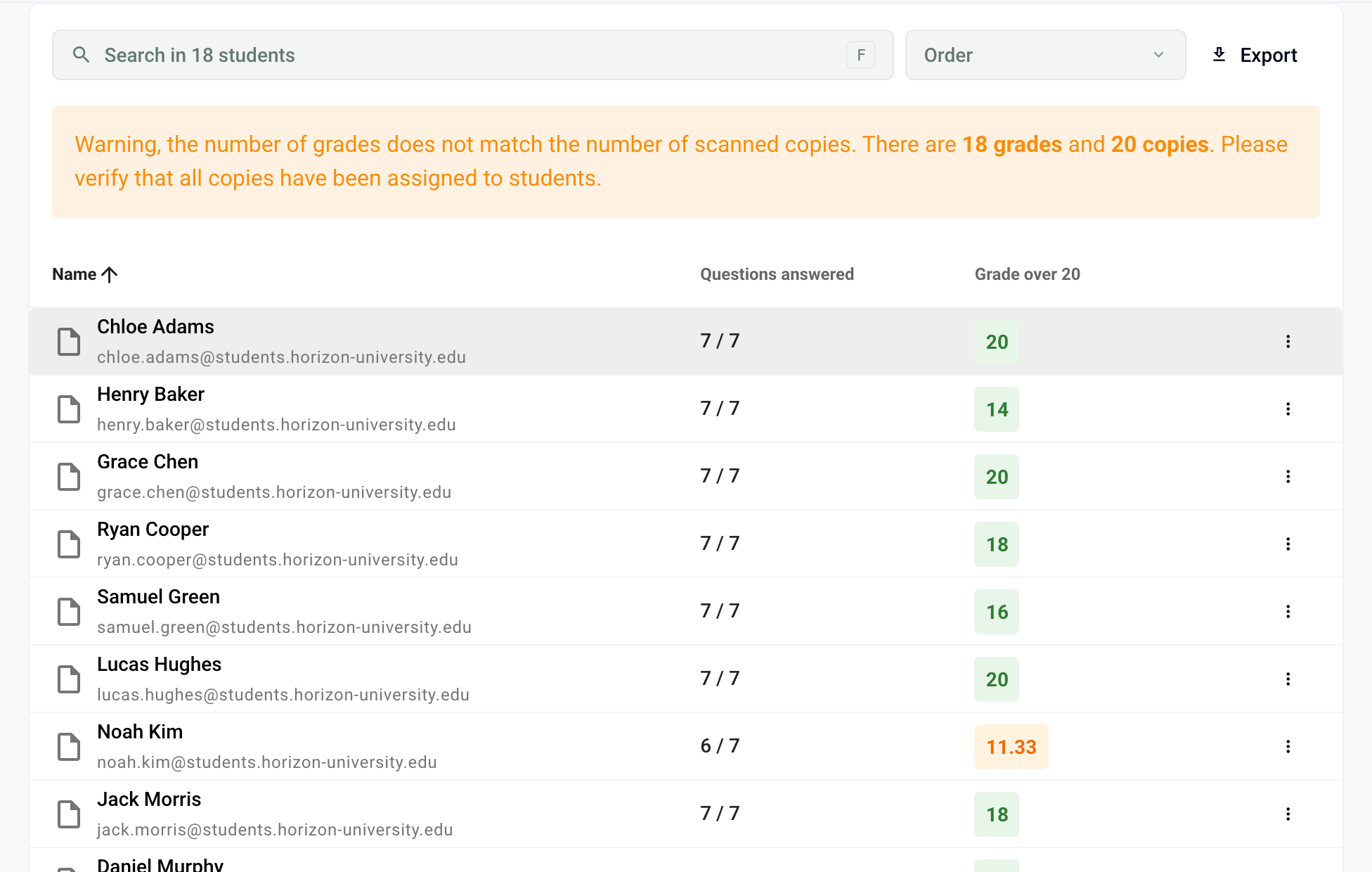
If Papeez warns that the number of grades does not match the number of scanned copies, some pages are not yet matched to a participant. See Handle the pages to review.
A participant's submission
Click a participant's name to open their submission:
their Score, compared with the average, the number of Questions answered and of Answers 100% correct;
a field to write feedback on their submission, printed on their graded submission;
each question, in the order the participant received it, with their answers and points.
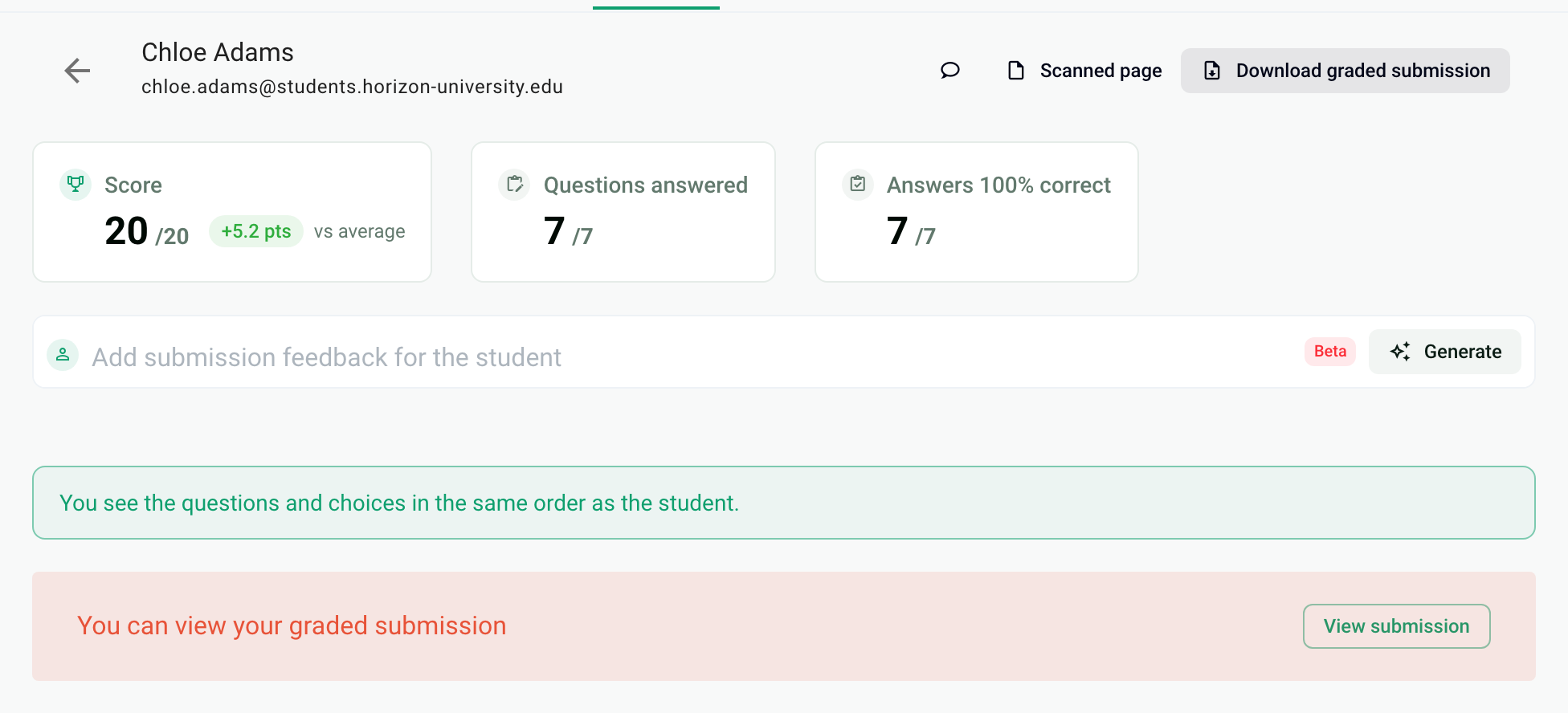
At the top of the page, Scanned page shows the scanned answer sheet and Download graded submission downloads the graded submission as PDF. The View submission button opens the analyzed answer sheet, with a Download subject link to compare it with the subject of that copy.
Going further
Send grades and open submissions to participants: Share grades with participants.
Export grades to Excel: Export grades.
Download graded submissions: Download graded submissions as PDF.
Analyze results question by question: View statistics.
Frequently asked questions
A participant is not in the list
A participant is not in the list
The list only shows participants who have a graded copy. Check that their sheet was scanned and matched to their name: see Handle the pages to review and Match a copy to a participant.
To find every enrolled participant without a graded copy, click Export, then Grades only. The file has one row per enrolled participant, sorted by name. A participant's grade reads “ABS” when no copy was matched to them.
A grade is wrong
A grade is wrong
If a box was misread on this copy, fix it: see Fix the boxes read on a copy. If all copies are wrong on the same question, fix the correct answer in the subject: see Fix the subject and recalculate grades.
Was this helpful?
Still need help? Ask the team