Edit your profile and password
Change your first name, last name, language or password in your account settings.
Written By Florian Barral
Last updated 2 days ago
Your profile includes your first name, your last name, the email address you log in with and your password.
Open your profile
Click your name at the bottom of the sidebar, then Settings. The Profile page opens.
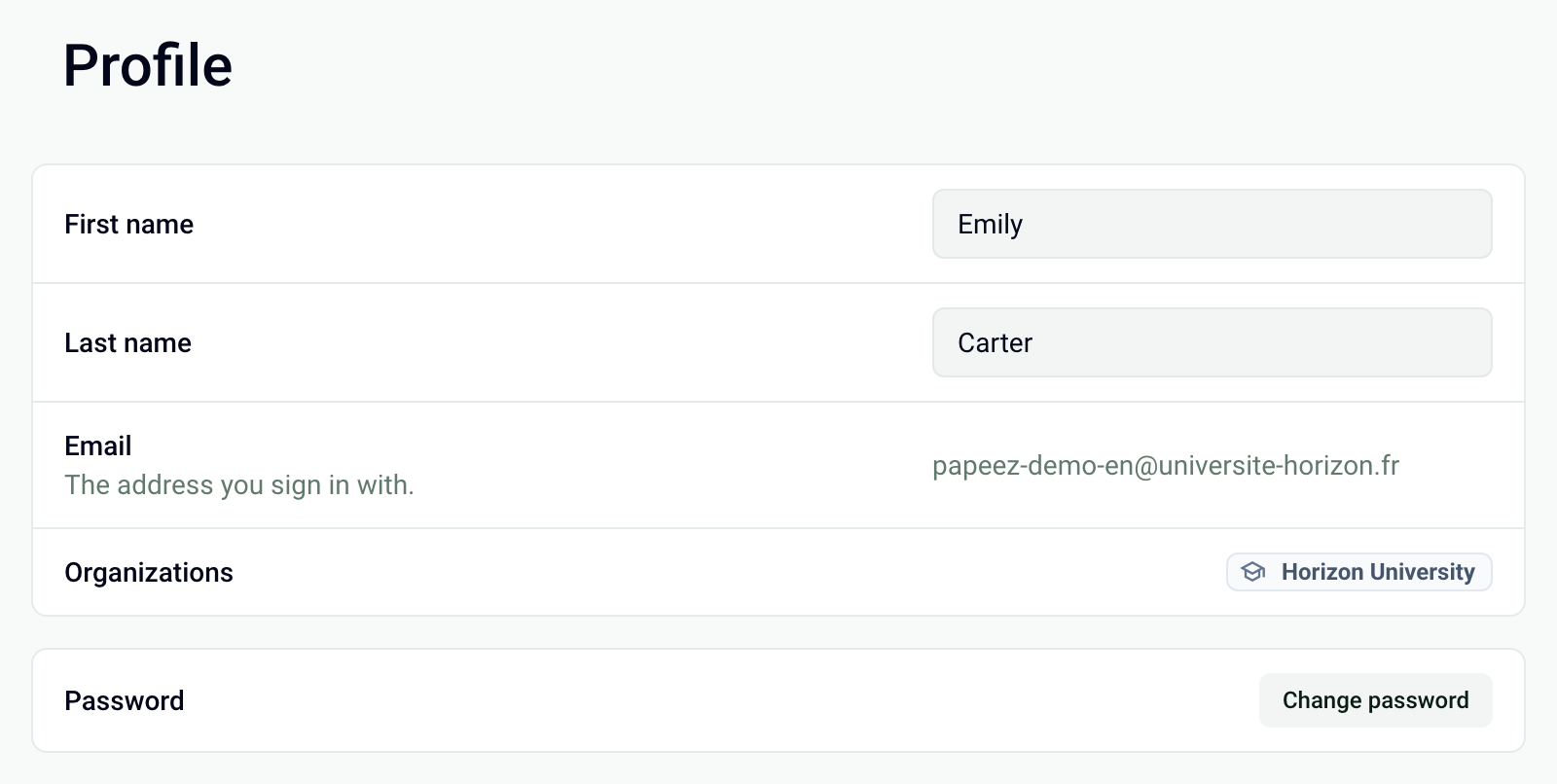
Change your first name or last name
Edit the First name or Last name field.
Click Save, which appears next to the field.
Set or change your password
The password is optional: without it, you log in with a code sent by email. It saves you from opening your mailbox every time you log in.
Click Change password.
Enter your new password, then confirm it. The list of rules to follow is checked off as you type.
Click Save.
Change the interface language
In the settings, open Preferences, then choose your Language. The change applies immediately.
Change your email address
You can't change your email address from your profile. Write to us from the support chat with your old and new addresses.
Frequently asked questions
I forgot my password
I forgot my password
On the login page, click Forgot password?, or log in with the code sent by email and then set a new password here. See Log in to Papeez.
Was this helpful?
Still need help? Ask the team