Invite colleagues to your organization
Add colleagues to your organization, with or without an invitation email, or let them join through your domain.
Written By Florian Barral
Last updated 9 days ago
Your colleagues must belong to your organization to create exams and work with you. Only organization administrators can add them.
Add colleagues
In the sidebar, open Directory, then Teachers (or the term your organization has chosen).
Click Add, then Add one by one.
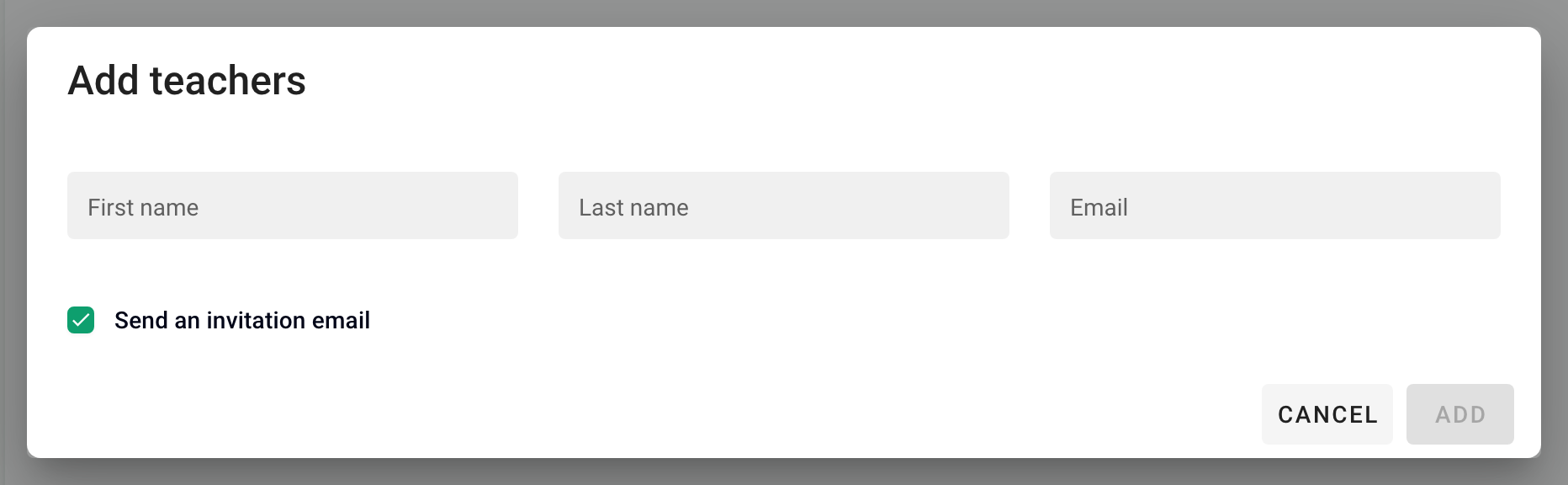
Enter each colleague's first name, last name and email. A new row appears each time you add a person.
Leave Send an invitation email checked to notify them, or uncheck it to create the accounts without writing to them.
Click Add.

To add many colleagues at once, choose Import an Excel file in the same menu instead.
Once in the organization, a colleague doesn't see your exams yet. Share them with the colleague, or put them in a team space: see Share exams with colleagues and Private space vs team spaces.
Make someone an administrator
In the directory, click ⋮ to the right of the colleague, then Edit. Check Organization administrator, then click Edit. An administrator manages members, organization settings and the plan.
Let your colleagues join the organization on their own
With allowed email domains, anyone who creates an account with an address from your domain (for example my-school.com) can join your organization without an invitation. Your organization is offered to them after they create their account: they click Join.
Click your name at the bottom of the sidebar, then Settings.
Under Administration, open Connection and security.
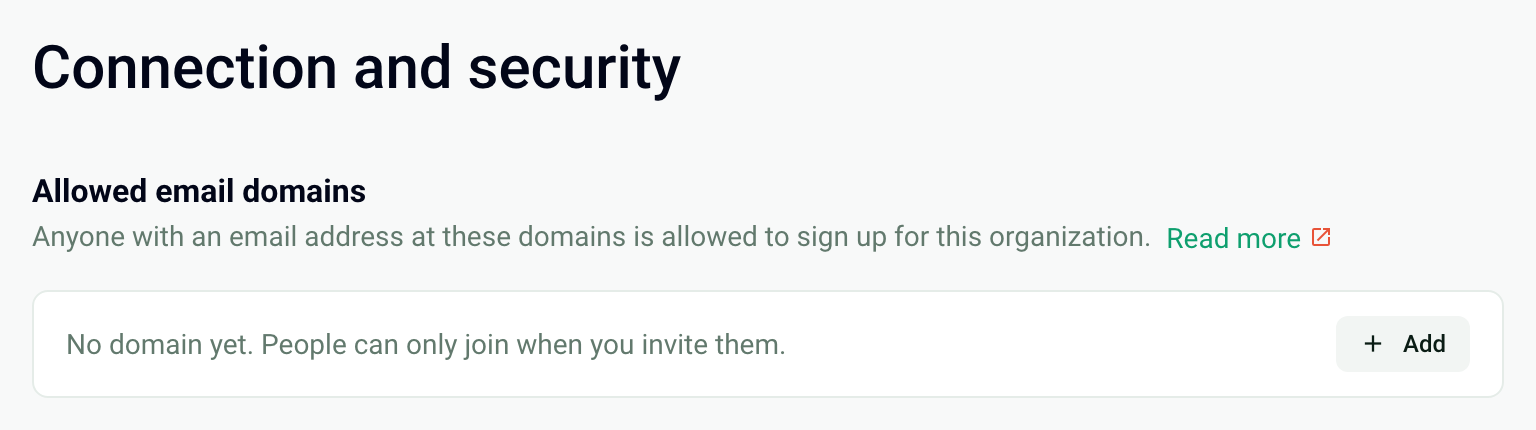
In Allowed email domains, click Add, then enter the domain without the
@.
People who join the organization this way are not administrators. If your organization uses SSO, this domain also offers them SSO login.
Don't add a public email domain (gmail.com, outlook.com…): anyone could join your organization.
Frequently asked questions
I don't see the Directory menu
I don't see the Directory menu
The Add button is grayed out with a padlock
The Add button is grayed out with a padlock
Your plan allows only one account to create exams. To work with several people, switch to the Organization plan: click Upgrade to Organization, or contact us.
The Allowed email domains option is not available
The Allowed email domains option is not available
This option is part of the Organization plan. In the meantime, add your colleagues one by one or with an Excel file.
Was this helpful?
Still need help? Ask the team