Edit, delete & duplicate an exam
Rename, move, duplicate or delete an exam, and edit an exam that has already been printed.
Written By Florian Barral
Last updated 9 days ago
Rename, move, duplicate or delete an exam from your exam list.
The exam menu
In the exam list, click ⋮ at the end of the row:
Rename the exam;
Share the exam with colleagues: see Share exams with colleagues;
Move the exam to another folder or a team space;
Duplicate the exam;
Delete the exam.
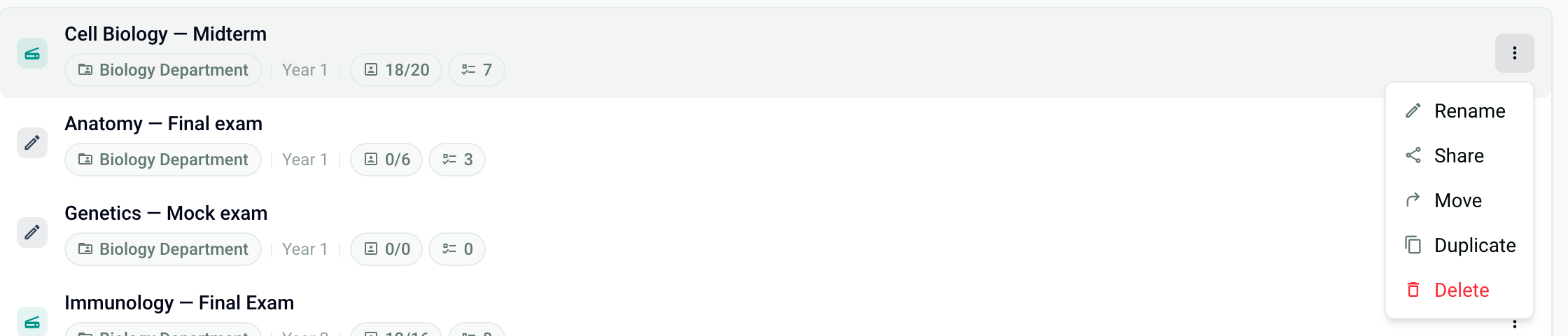
From an open exam, the ⋮ button at the top right also offers Duplicate, Move and Delete.
Duplicate an exam
Duplicate an exam to reuse it from one year to the next or to make a variant of it.
Click
⋮, then Duplicate.Rename the duplicate if needed.
In Elements to duplicate, choose what you keep: Subject, Settings and, if you want, the participant list.
In Destination, click Change to choose another folder.
Click Duplicate. With Open the duplicated exam turned on, the new exam opens right away.
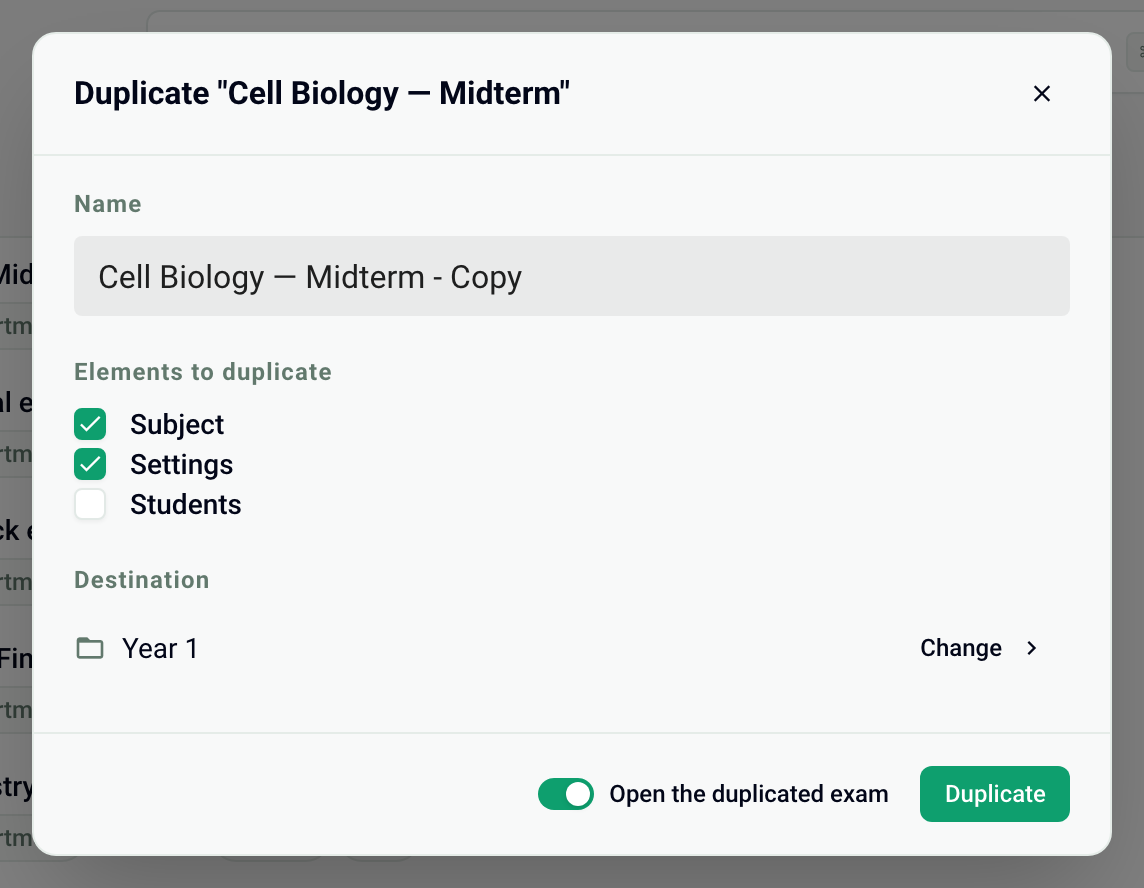
The new exam starts from scratch: no generated copies, no scans, no grades. When the original exam is shared, the Shared access option keeps the same access.
Edit an exam that has already been printed
Once the copies are generated, the subject and the settings are locked: the message "The exam has been generated, you can no longer edit it." appears in the editor. To edit the exam, delete the generated copies from the Print tab, make your changes, then generate them again. Only print and hand out the latest version. See Generate the copies to print.
After the exam, you can still change a correct answer or the points, then recalculate the grades: see Fix the subject and recalculate grades.
Delete an exam
Click ⋮, then Delete. Check the confirmation box, then click Delete exam.
Deletion is permanent: the subject, the scanned copies, and the participants' answers and grades are deleted. Export the grades first if you need them.
Frequently asked questions
Why can't I duplicate an exam?
Why can't I duplicate an exam?
If your trial period has ended or your subscription was canceled, your account is read-only: duplicating, like creating an exam, is refused. You can still view and export your exams. Choose a plan to be able to duplicate again.
My duplicated exam opens in an old editor
My duplicated exam opens in an old editor
Some older exams, or exams duplicated from an older exam, use the old editor: no "/" menu, images or formulas displayed as code. Contact support: we can move the exam to the new editor. Otherwise, create a new exam with New Exam, import your question file again (see Import a subject from Excel), then copy your instructions back into Configure.
Can I reuse the participant list from another exam?
Can I reuse the participant list from another exam?
Yes: when you duplicate the exam, check the participant list in Elements to duplicate.
Was this helpful?
Still need help? Ask the team