Share exams with colleagues
Give a colleague access to an exam or a folder, invite them by email and choose their role.
Written By Dorian Becker
Last updated 9 days ago
Give colleagues in your organization access to an exam, or to a whole folder of exams. Each person gets a role that defines what they can do.
Share an exam
In the exam list, click
⋮at the end of the row, then Share. From an open exam, click the avatars at the top right.In Add people, type your colleague's name or email, then pick them from the list.
Choose their role.
Leave Notify by email checked to let them know, then click Share.
The Share button only appears once the person is picked from the list: typing the email and pressing Enter is not enough.
Invite a colleague who doesn't have an account yet
The list only suggests colleagues who are already members of your organization. For anyone else:
Type their full email address.
Below the message saying that no one was found in your organization, click Invite by email.
Choose their role, then click Share.
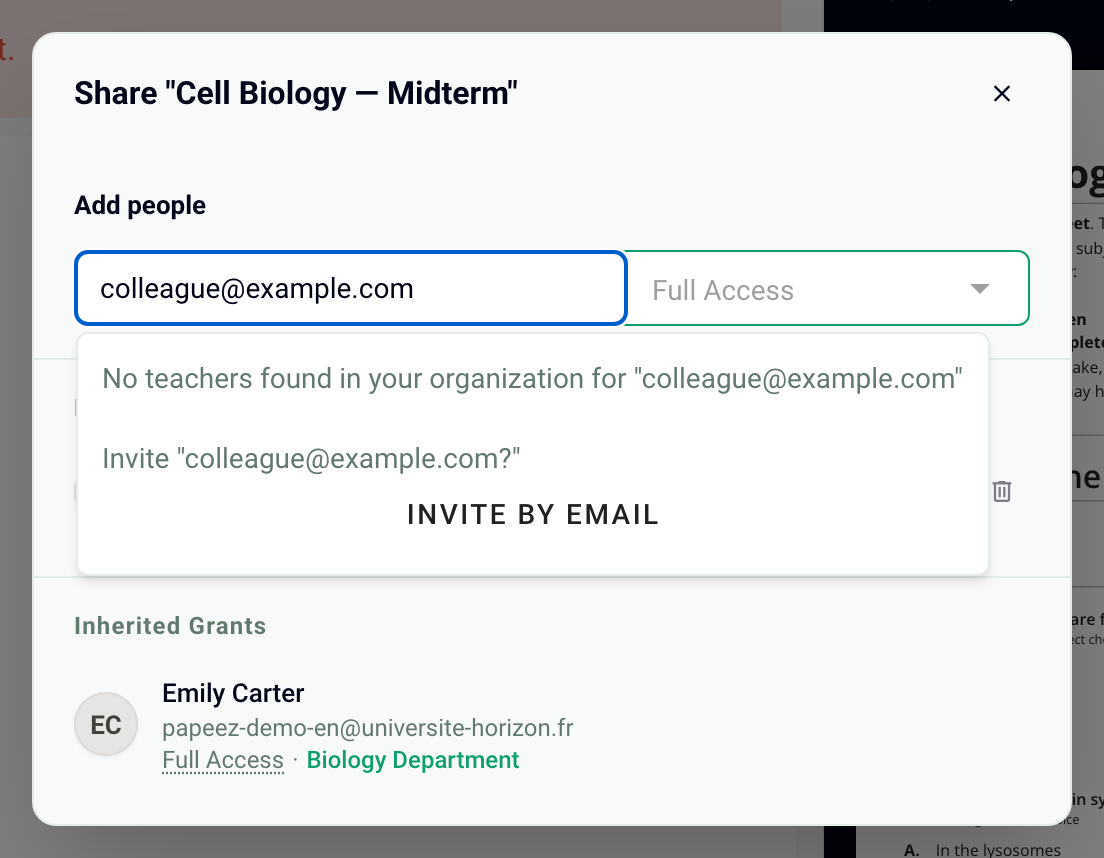
Your colleague is added to your organization and receives an email with a sign-in link. To invite colleagues without sharing an exam, see Invite colleagues to your organization.
Adding a colleague depends on your plan. If the Add people field is grayed out, or if a message says your plan includes only one person, you need to upgrade to the Organization plan.
Roles
Full Access: all rights, including sharing, moving and deleting the exam. The person who creates an exam has this role on it.
Editor: edits the subject and the settings, enrolls participants, generates the copies, manages the scanned copies and views the results. Cannot share, move or delete the exam.
Viewer: views the exam, its results and its statistics, without changing anything.
To change or remove access, reopen the sharing window: the people you added are listed under Explicit Grants.
Share a folder: team spaces
To work together regularly, put your exams in a Team Space and share it, or share one of its folders: open it, then click Share next to its name.

The role given on a folder applies to its subfolders and its exams. This access appears under Inherited Grants in the sharing window of an exam.
Folders in your Private Space cannot be shared. An exam in your private space can be, one exam at a time.
See Private space vs team spaces.
Frequently asked questions
Nothing happens when I add a colleague's email
Nothing happens when I add a colleague's email
After typing the email, click your colleague in the list, or Invite by email if they are not in your organization yet. The role choice and the Share button then appear. If the field stays grayed out, your plan does not allow adding more colleagues.
My colleague didn't receive the email
My colleague didn't receive the email
Check that Notify by email was checked, and ask them to look in their spam folder. Access is granted even without the email: your colleague finds the exam in their exam list by signing in with that address.
My colleague sees the folders above the shared exam
My colleague sees the folders above the shared exam
Was this helpful?
Still need help? Ask the team