Structure a subject: sections, exercises, questions
Organize the subject into sections, exercises and questions, and write an exercise's statement in the right place.
Written By Florian Barral
Last updated 9 days ago
A Papeez subject is organized into sections, exercises and questions. This article explains what each level is for, how to add it, and where to write an exercise's statement.
The subject editor
Open the Create step, Subject tab. On the left, you write. On the right, the Preview shows the subject as it will be printed, updated as you type. The subject is saved automatically.
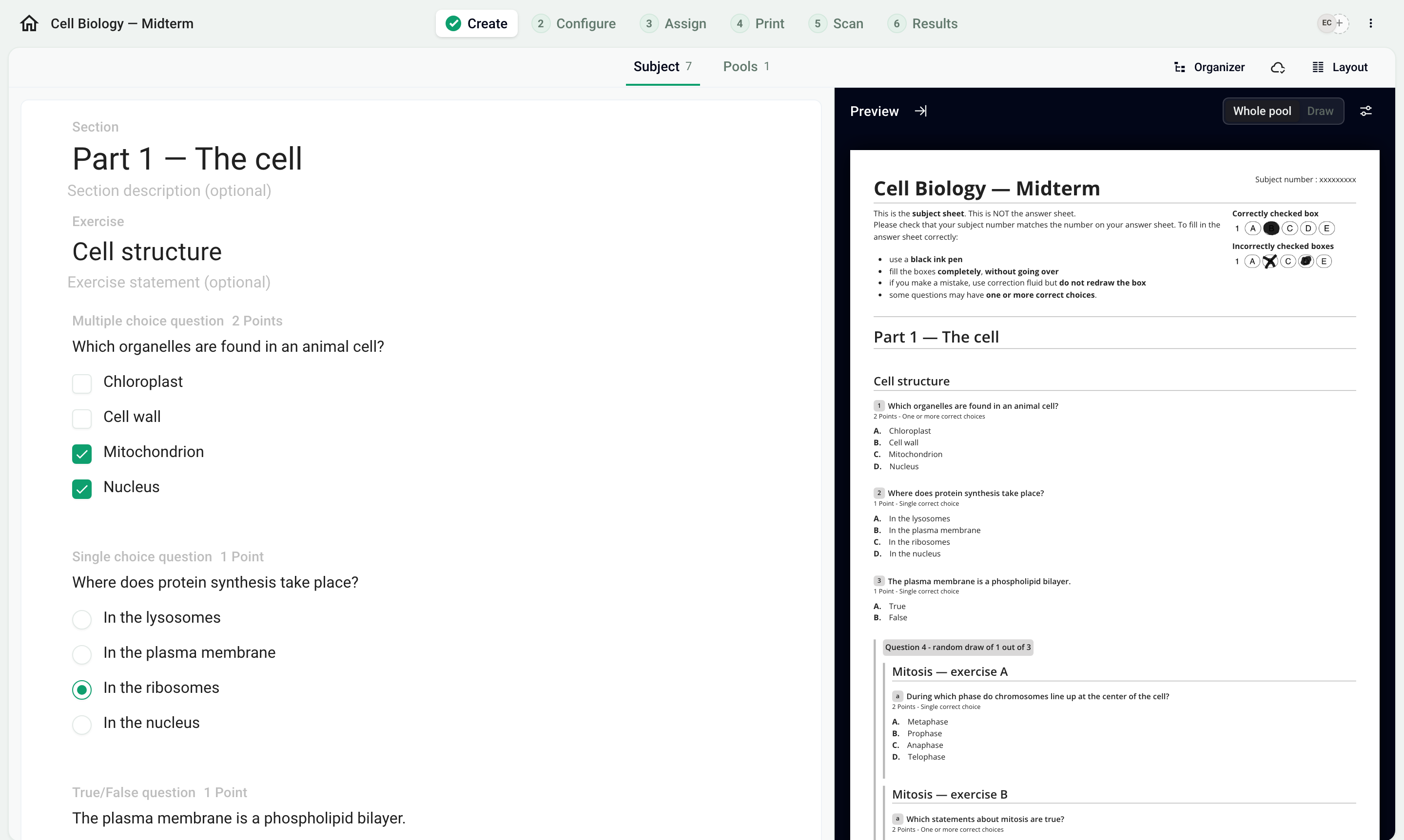
Sections, exercises and questions
Sections and exercises are optional: a subject can be just a list of questions.
Add a question, an exercise or a section
Below the block after which you want to insert the item, click Add. The two icons next to it directly create a single choice or a multiple choice question.
Choose from Questions (True/False, Single choice, MCQ) or from Structure (Random draw, Exercise, Section).
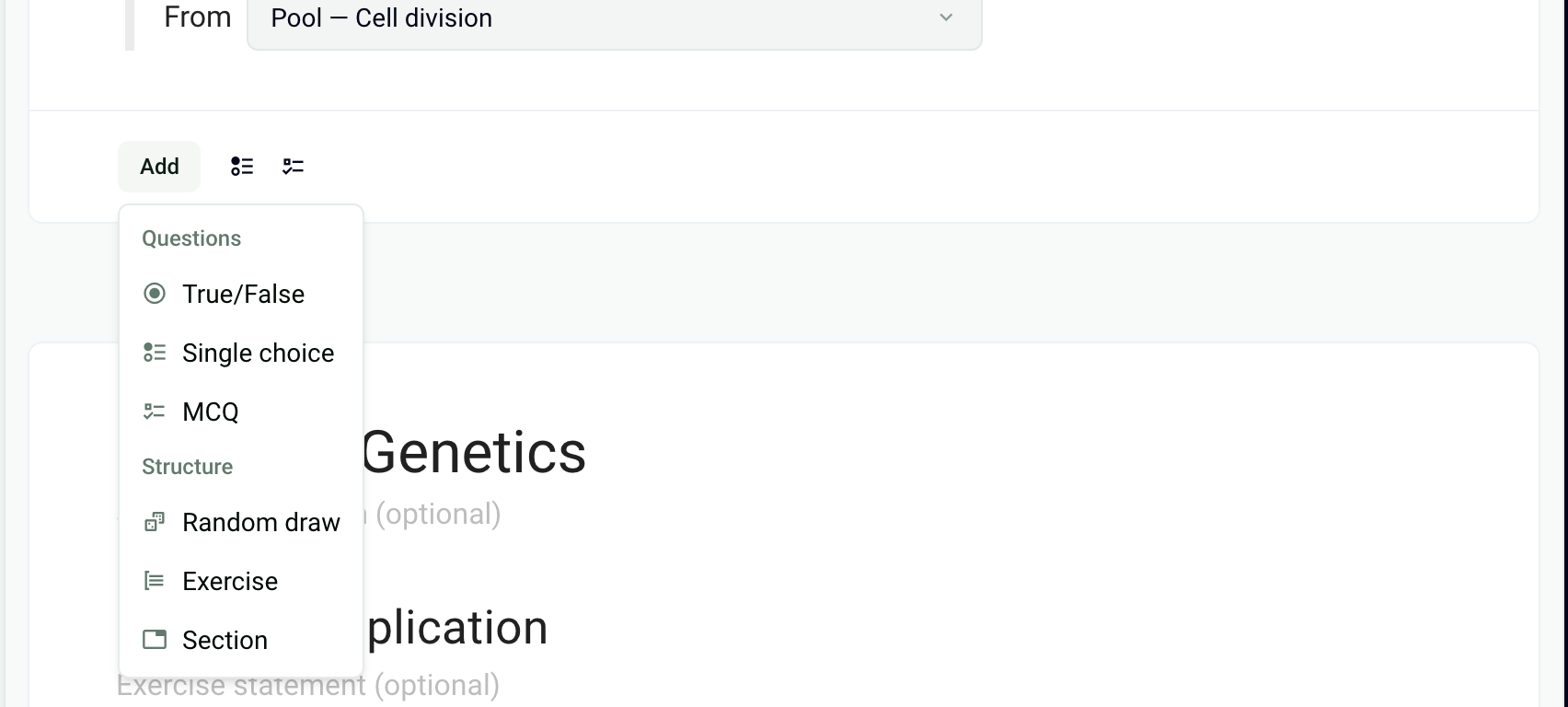
The menu depends on where you click: inside an exercise, it offers the questions and the Complementary statement. In an empty subject, choose SCQ Question, MCQ Question or Other, or import an existing subject: see Import a subject: which format to choose?. For random draws, see Exercise pools and random drawing.
Exercise name and statement
An exercise has two fields, one below the other:
Exercise name: plain text, printed as a heading. It accepts no formatting, no formula and no
/menu.Exercise statement (optional), just below: rich text, with formulas, images, tables and the
/menu.
If a LaTeX formula shows as is ($x^2$) or the / menu does not appear, you are probably typing in the name. Click the grayed-out text Exercise statement (optional) below the name, and type there.
A section works the same way: Section name in plain text, Section description (optional) in rich text.
To place a text between two questions of an exercise, add a Complementary statement: a text with no answer. The questions of that exercise can then no longer be shuffled. See Shuffle questions and choices.
Convert, move, duplicate
Hover over the block: a trash can and a six-dot handle appear on its left. Click the handle to open its options, or drag it to move the block.
Convert to exercise: on a single question, turns it into an exercise so you can give it a name, a statement and other questions.
Convert to question: on an exercise that contains only one question, removes the exercise's name and statement.
Move to..., Move up, Move down: moves the block to another position, exercise or section.
Duplicate: creates a copy of the block just below it.
Hide section: removes the section's name and description without deleting its content. Make section visible restores them.
Frequently asked questions
Can I write a LaTeX formula in an exercise name?
Can I write a LaTeX formula in an exercise name?
No. The name of an exercise or a section is plain text: $…$ stays displayed as is. Write the formula in Exercise statement (optional), or in the question's statement.
The / menu does not appear in the exercise statement
The / menu does not appear in the exercise statement
An Errors button shows at the top of the editor
An Errors button shows at the top of the editor
It counts the items to fix: a question with no statement, no correct answer, fewer than two choices… Click it to see the list and go to each item. The copies cannot be generated while a question is invalid. See Multiple choice, single choice and True/False questions.
I can no longer edit the subject
I can no longer edit the subject
The editor shows The exam has been generated, you can no longer edit it. Once the copies are generated, the subject is locked. Only points, correct answers and grading comments can still be edited. See Fix the subject and recalculate grades. To change more, click Go delete the generated subjects, edit the subject, then generate the copies again: see Generate the copies to print.
Was this helpful?
Still need help? Ask the team