Download the blank subject or answer key
Download the blank subject or the answer key as a PDF, and reuse a subject in another exam.
Written By Florian Barral
Last updated 9 days ago
The blank subject is the subject as it will be printed, without the answers. The answer key is the same document with the correct answers checked. Use them to proofread the subject, have a colleague approve it or share the answers.
Download the blank subject or answer key
Open the Print step.
In Blank and corrected subject, click Download blank subject or Download corrected subject.
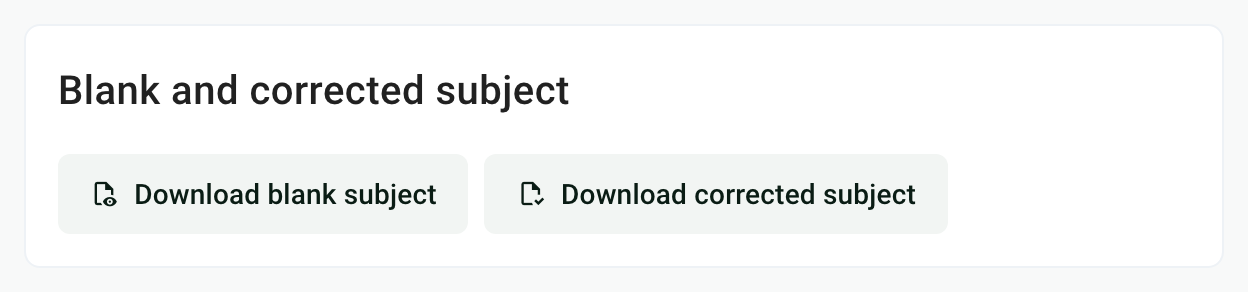
You can also use the exam's ⋮ menu › Export › Blank subject or Corrected subject. Both PDFs are available at any time, before and after the copies are generated.
What each PDF contains
If the subject contains a random draw, both PDFs show all the exercises of the pool, under a label such as Question 4 - random draw of 1 out of 3. See Exercise pools and random drawing.
Do not print the blank subject for the exam: it has neither an answer sheet nor a barcode, and Papeez could not read the copies. Print the generated copies. See Generate the copies to print.
Check without downloading
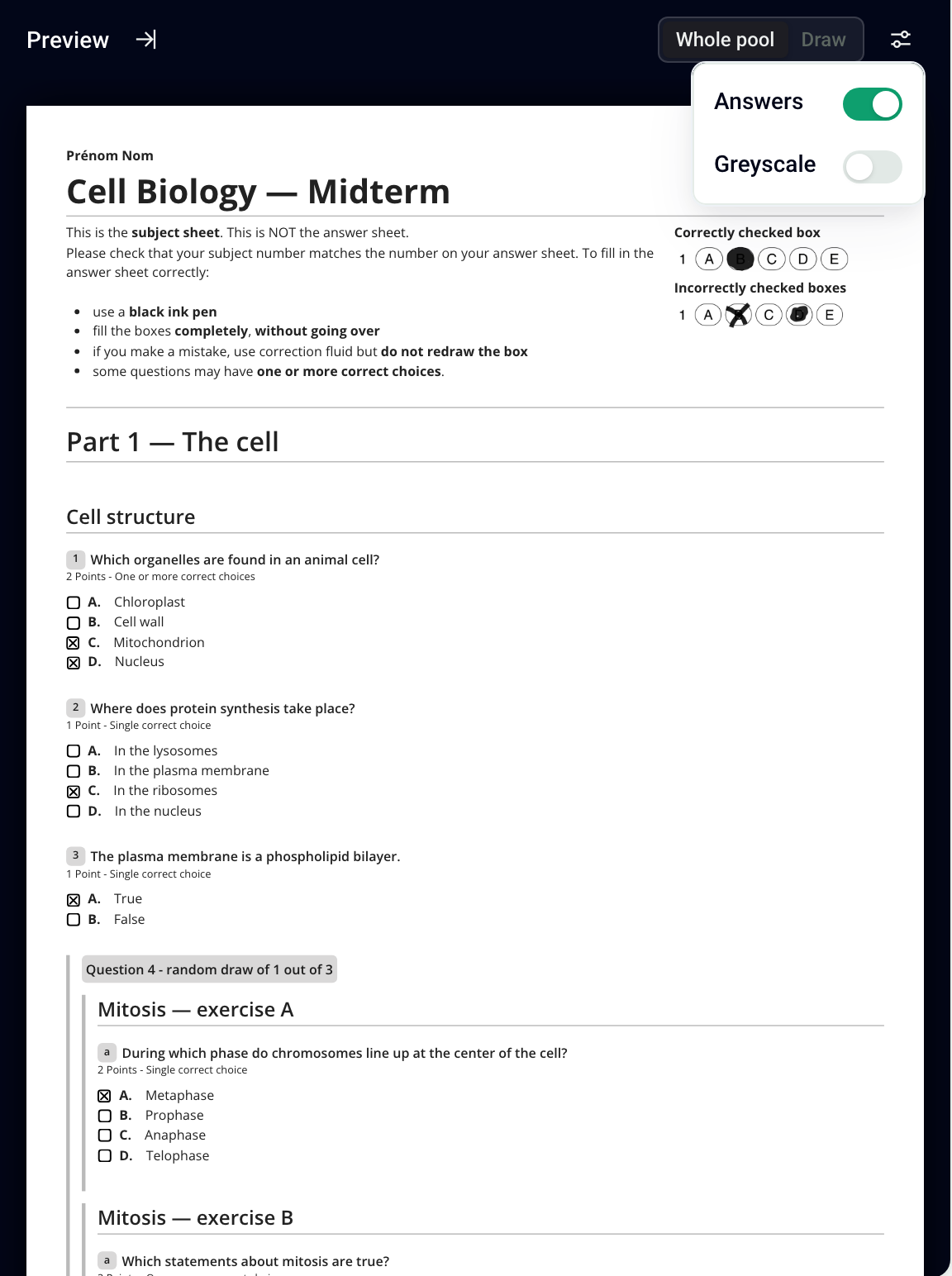
In the subject editor, the Preview shows the printed subject. Click the settings icon at the top right and turn on Answers to see the correct answers checked.
Reuse questions in another exam
Reuse a whole subject: in the destination exam, open the ⋮ menu › Import › From an existing exam, find the source exam and check Subject. This replaces all the questions, exercises and sections of the destination exam, and is only possible before the copies are generated.
Start from an exam: ⋮ menu › Duplicate. See Edit, delete & duplicate an exam.
Merge two subjects: export each exam to Excel (⋮ menu › Export › Excel), copy the rows of the second one into the Subject sheet of the first, then import this file into the destination exam. The import replaces the existing subject: then check images and formulas. See Import a subject from Excel.
You cannot copy a single question from one exam to another. The Export menu also offers the AMC Text format, to reuse the questions in Auto Multiple Choice.
Frequently asked questions
Does the answer key show only the correct answer?
Does the answer key show only the correct answer?
No: all the choices stay displayed, in the same order as on the blank subject, and the correct choices are checked.
Does the answer key include my grading comments?
Does the answer key include my grading comments?
Yes, below each question concerned. They appear neither on the blank subject nor on the printed copies. See Edit and format content.
The Import menu is grayed out
The Import menu is grayed out
The blank subject says "Un seul choix correct" (single correct choice) on a question with several correct answers
The blank subject says "Un seul choix correct" (single correct choice) on a question with several correct answers
This printed hint follows the question type, not the number of correct answers checked. In the editor, open the question's options (six-dot handle on its left) and choose Convert to MCQ. Then download the blank subject again.
Was this helpful?
Still need help? Ask the team