Import a subject: which format to choose?
Excel, Text, AMC, Moodle or Smart Import: the right format for your questions.
Written By Florian Barral
Last updated 9 days ago
Rather than typing questions one by one, you can import a subject prepared elsewhere. Papeez offers several formats; the right choice depends on where your questions already live.
In the Create › Subject tab, click Import. The button shows as long as the subject is empty; otherwise, go through the exam's ⋮ menu › Import › Subject.
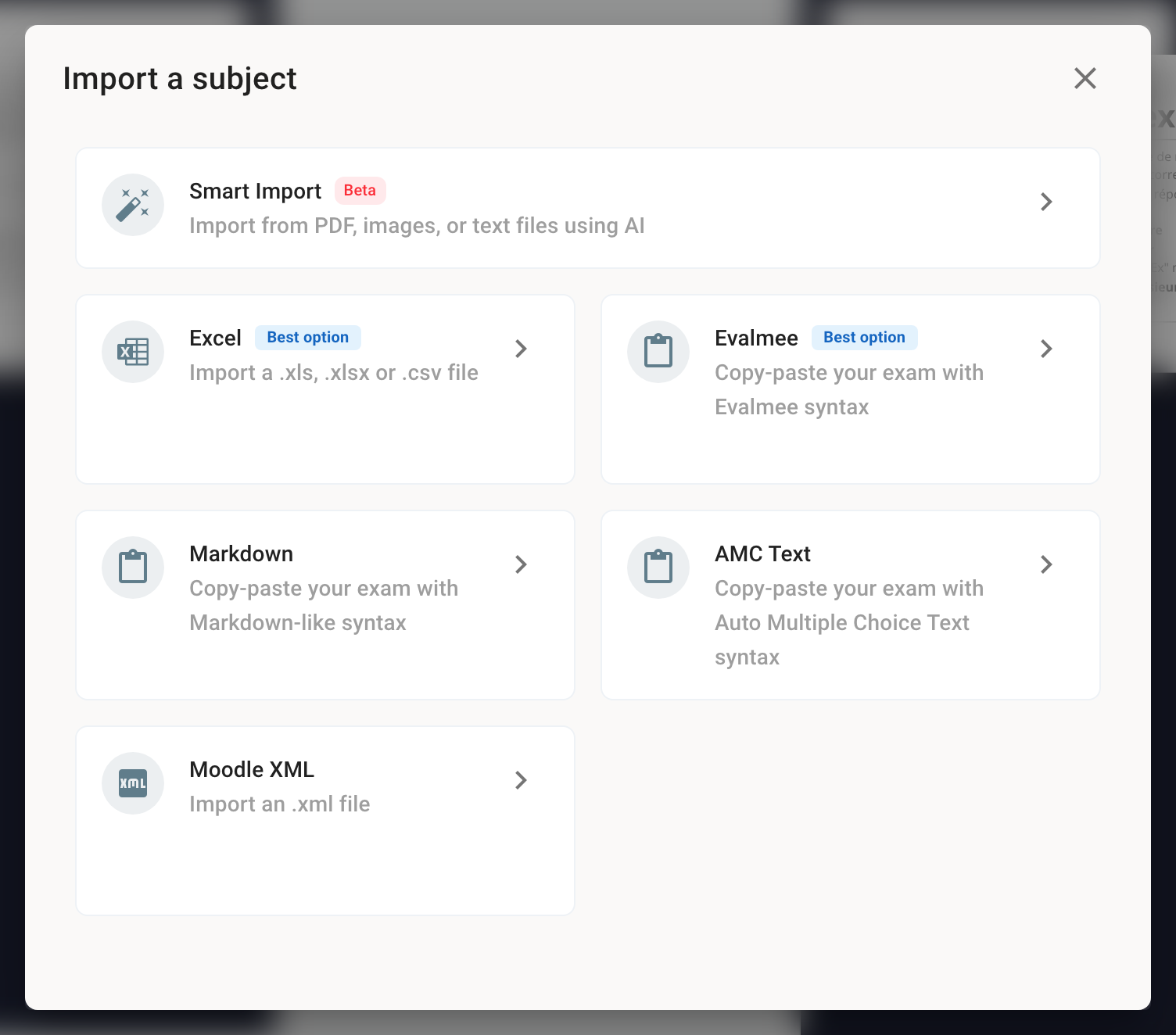
Formats compared
An import replaces the whole subject: sections, exercises and questions. Import before generating the copies: once the copies are generated, the subject can no longer be edited (except points, correct answers, tags and grading comments).
Images, tables and formulas
No format imports images: add them afterwards in the editor. Excel and the Text format accept simple formatting (bold, italic, lists, line breaks) and formulas between $…$. For tables and rich formatting, import the text, then complete it in the editor. See Edit and format content.
Reuse the questions of another exam
To reuse the subject of one of your Papeez exams, open the exam's ⋮ menu › Import › From an existing exam, search for the exam and check Subject. Like the other imports, it replaces all the questions. You can also Duplicate the original exam from its ⋮ menu.
Limit import errors
Always start from a template downloaded from Papeez: it follows the expected format.
Test first with a small file, in an empty exam.
After the import, check the Errors counter at the top right of the editor and the subject preview, then download the answer key to check the correct answers.
Was this helpful?
Still need help? Ask the team