Edit and format content
Formatting, images, LaTeX formulas, tables, code blocks and grading comments.
Written By Florian Barral
Last updated 9 days ago
Question statements, choices, exercise statements and grading comments accept formatted text, formulas, images, tables and code. Here is how to insert them.
Format text
Select some text: a menu appears to make it Bold, Italic, Underline, Strike-through, Code, add a Link or change its color.
Insert an item with /
In a text field, type
/at the start of a line or after a space.Choose the item: Heading 1 to Heading 3, Bullet list, Ordered list, Image, Mathematical formula, Mathematical formula - Block, Code block, Table. Type a few letters to filter, for example
/imfor an image.
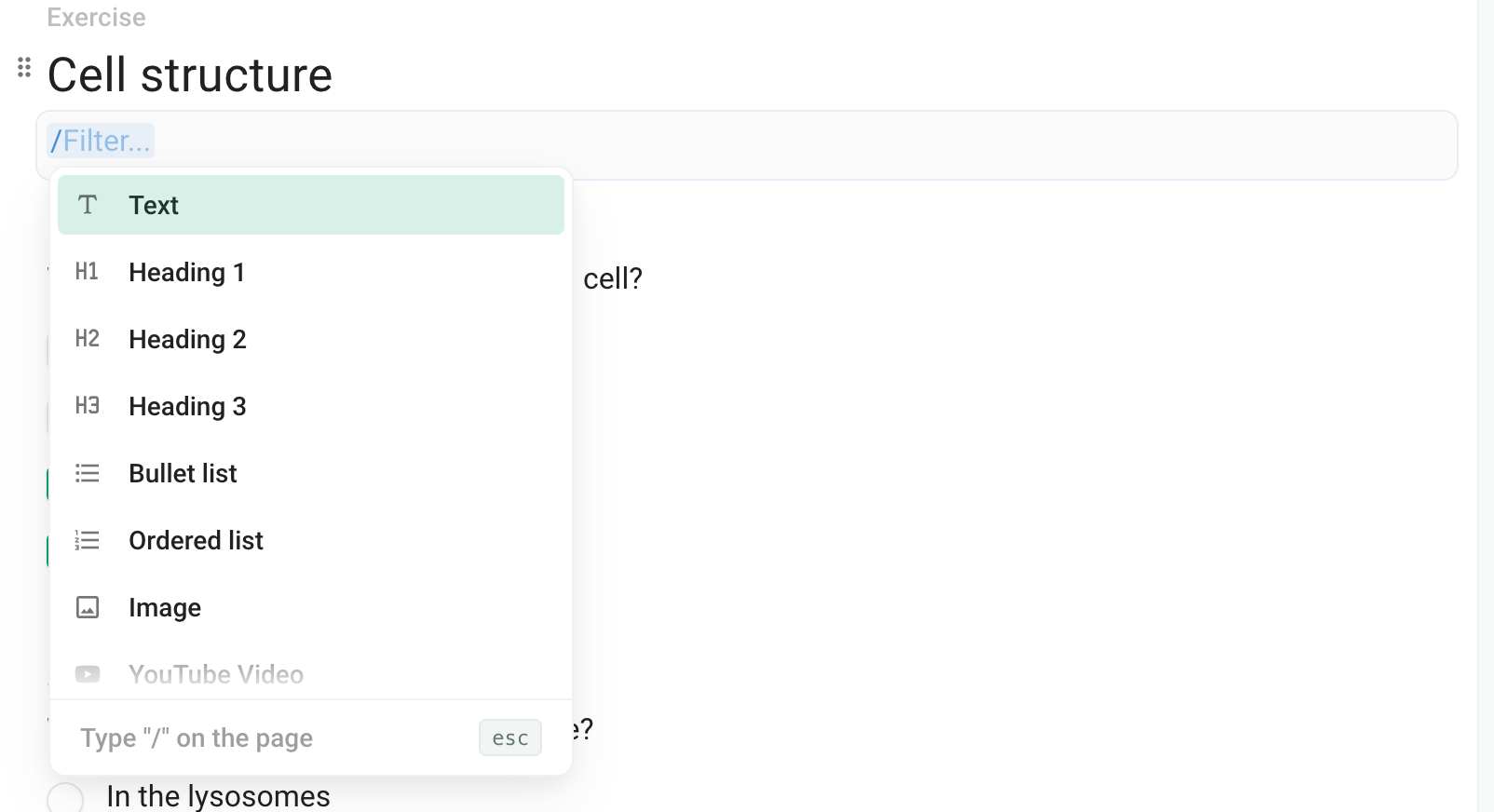
On an empty line, icons on the right also directly insert a formula, an image, a code block or a table. The name of an exercise or a section is plain text: the / menu does not work there, so type in its statement. See Structure a subject: sections, exercises, questions.
Add an image
Type
/then Image, and drop the file into the frame or click it to choose the file.Or paste a copied image, or drag and drop the file into the field.
Accepted formats: JPEG, PNG, GIF and WebP, 5 MB max. To resize an image, click it and drag its side handles. Its toolbar lets you align it left, center or right, or delete it. Images also work in a question's choices.
Write a formula
Mathematical formula (shortcut Ctrl + Shift + E, ⌘ + Shift + E on Mac) inserts a formula in the line. Mathematical formula - Block shows it on its own line, centered.
In LaTeX: type
$\frac{1}{2}$. When Press Tab to convert to math appears, press Tab.Pasted text that contains formulas between
$…$is converted automatically.
Check the rendering in the Preview, or download the blank subject: it is the reference document. See Download the blank subject or answer key.
Keep a $ as is
For code or Excel formulas (=SUM($A$1:$A$9)), put the text in a Code block: type /code, or ``` then Space at the start of a line. Nothing in it is converted into a formula, even when pasted. Elsewhere, a typed $ stays text as long as you do not press Tab, but pasted text with two $ becomes a formula.
Add a table
Type / then Table, and choose the number of rows and columns. Click in a cell to add or delete rows and columns, set a header, merge cells or delete the table.
Add a grading comment
Hover over the block: a trash can and a six-dot handle appear on its left. Click the handle to open its options.
Choose Grading comment, then type in the field that appears below the choices.
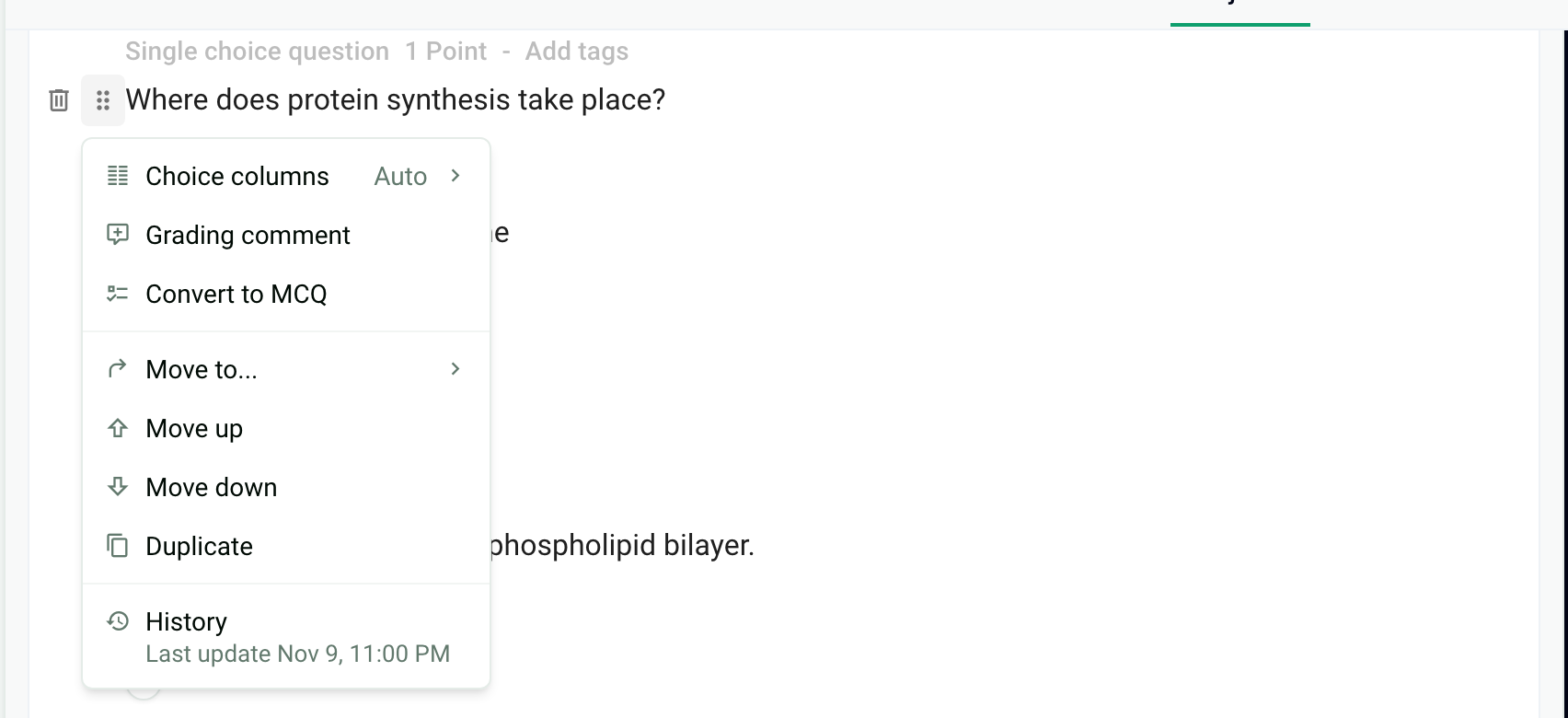
The comment is printed only on the answer key, never on the copies handed out. It can still be edited after the copies are generated. See Download the blank subject or answer key.
Frequently asked questions
Is my subject saved?
Is my subject saved?
Yes, every change is saved automatically.
A formula displays incorrectly in the editor
A formula displays incorrectly in the editor
Download the blank subject to see the printed rendering. If the PDF is correct, only the editor's display is affected. If the PDF is wrong too, write to us from the help chat with the formula. See Download the blank subject or answer key.
Code such as  shows instead of an image
Code such as  shows instead of an image
This can happen on an exam created with the old editor, then duplicated or imported. Write to us from the help chat with the name of the exam.
My text contains $ signs that turn into formulas
My text contains $ signs that turn into formulas
Put this text in a Code block (/code): the $ signs stay displayed as is.
The "/" menu doesn't open and my formulas show as code
The "/" menu doesn't open and my formulas show as code
Was this helpful?
Still need help? Ask the team