Configure the exam settings
A tour of the Configure step settings: random order, copy type, results, assessment, grading scheme, instructions.
Written By Florian Barral
Last updated 9 days ago
The settings of a Papeez exam are in the Configure step, Settings tab. This article goes through each section; each one links to the article that covers it in detail.
Every setting is saved as soon as you change it, except the Personalization of instructions section, which has its own Register button. The summary on the right of the page jumps to each section.
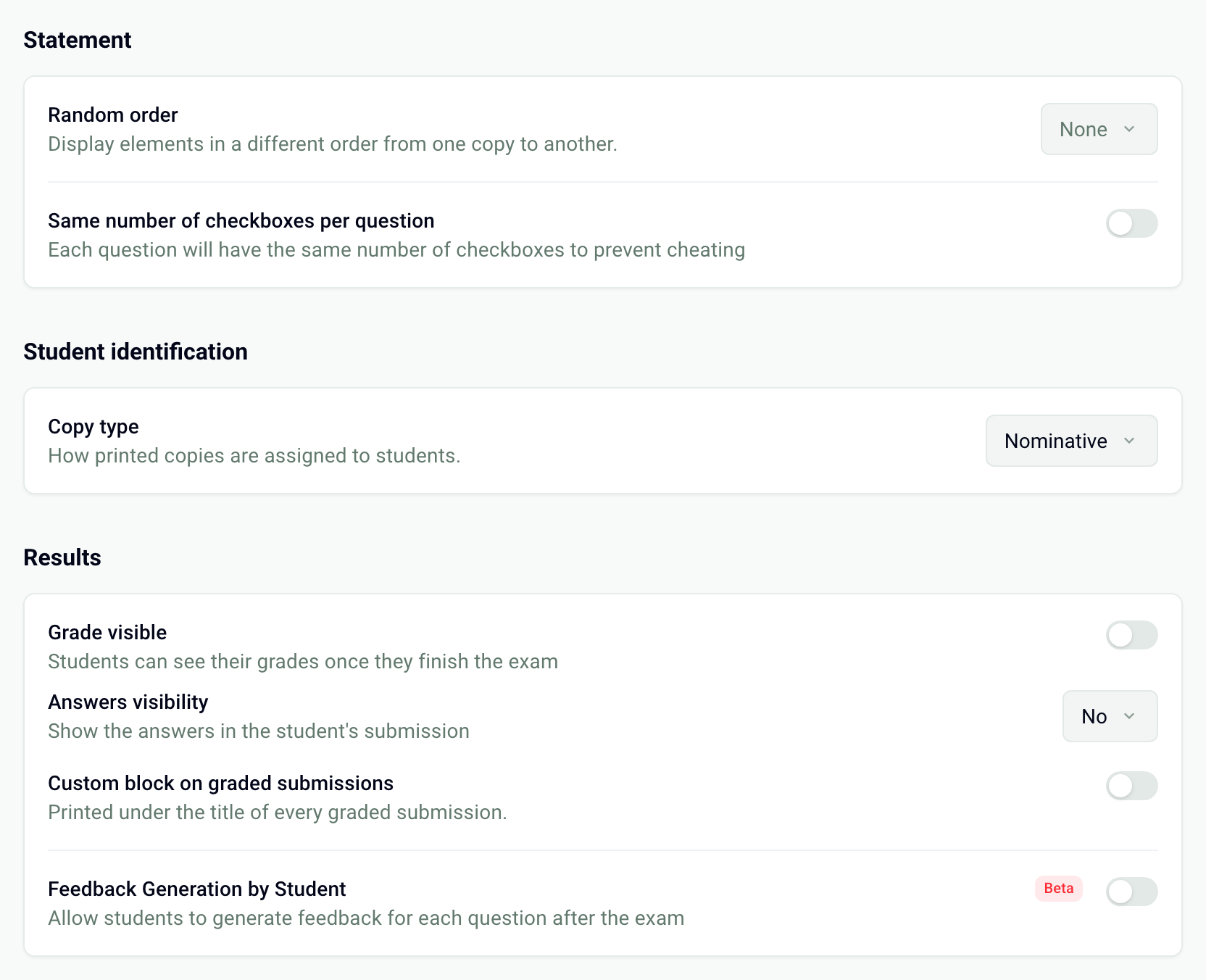
Statement
Random order: shuffle the sections, exercises, questions or choices so that every copy is different. See Shuffle questions and choices.
Same number of checkboxes per question: every row of the answer sheet has as many boxes as the question with the most choices. Two neighbors can no longer guess the order of the choices from the number of boxes.
Student identification
Copy type: Nominative (each participant's name is printed on their copy) or Anonymous (interchangeable copies, matched back through the number written on the answer sheet). In anonymous mode, you also set the Student number length, from 5 to 20 boxes. See Nominative or anonymous copies.
Results
These settings define what participants see online when you share their results (see Share grades with participants):
Grade visible: the participant sees their grade.
Answers visibility: No, or After submission to show the answer key in their submission.
Custom block on graded submissions: a text printed under the title of each graded submission.
Feedback Generation by Student (beta): after the exam, the participant can generate feedback for each question.
Assessment
Assessment Mode: Global Assessment (one grade for the whole copy) or Criteria-based Assessment (one grade per assessment criterion).
Grading scale: the final grade is scaled to 10, 20, 100, the number of questions, the sum of the questions' points, or a custom value. The questions' points do not change.
Achievement levels: associate a level with grade ranges, for example a pass mark. With Show to students, the participant sees their level in their online answers.
MCQ Grading
Define how single-choice, multiple-choice and True/False questions are graded: Classic scoring or Discordance scoring. See Set the grading scheme.
Personalization of instructions
The instructions printed at the top of the subject sheet, the sheet labels, and the Optimize subject for black and white printing option. See Customize the instructions and sheets.
After the copies are generated
Once the copies are generated, the sections that change the printed copies are locked: Statement, Copy type and Personalization of instructions. To change them, delete the copies in the Print step (Delete copies button), then generate them again.
The Results and Assessment sections remain editable. So does the grading scheme: click Edit scoring, then Save & recalculate grades. See Fix the subject and recalculate grades.
Frequently asked questions
The settings are grayed out
The settings are grayed out
Either the copies are already generated (see above), or you do not have the right to configure this exam: ask its owner to share it with you with that right. See Share exams with colleagues.
Can I reuse the settings of another exam?
Can I reuse the settings of another exam?
Yes, as long as the copies are not generated. In the exam's ⋮ menu, choose Import › From an existing exam, select the exam, then Exam settings. The random order, results, assessment and grading scheme are carried over. The copy type, the number of boxes and the instructions are not: set them again. To carry everything over, duplicate the original exam instead (⋮ › Duplicate).
Where do I set the exam duration or time accommodations?
Where do I set the exam duration or time accommodations?
A paper exam has no timer in Papeez: the duration and time accommodations are handled in the room. You can state the duration in the printed instructions.
Was this helpful?
Still need help? Ask the team