Add custom attributes
Add your own fields to participants and print them on nominative copies and graded submissions.
Written By Florian Barral
Last updated 9 days ago
Custom attributes are fields you add to an exam's participants: candidate number, room, accommodation… You can print them on nominative copies and on graded submissions.
Attributes belong to one exam: another exam does not have the same ones.
Create an attribute
Open the Students tab and click the tag icon, to the left of the Add button.
In the Custom attributes window, enter the name in New attribute, then click Add.
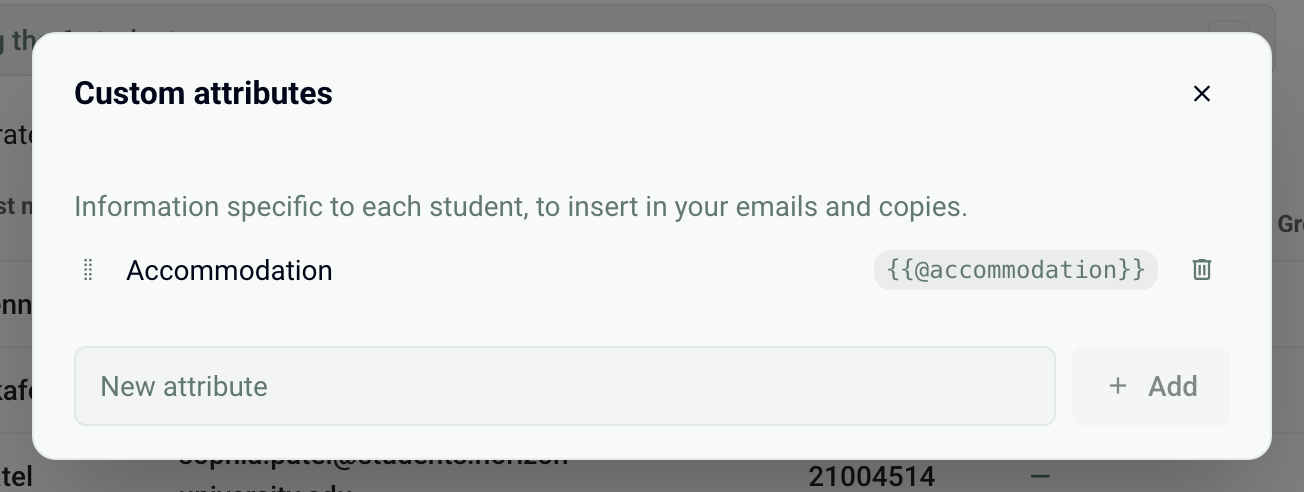
To the right of each attribute is its variable, for example {{@accommodation}}. Click it to copy it. The same window lets you rename, reorder or delete an attribute. Deleting an attribute erases its value for all the exam's participants.
Fill in the values
Each attribute appears as a column in the participants table. Click a cell, enter the value and confirm with Enter.
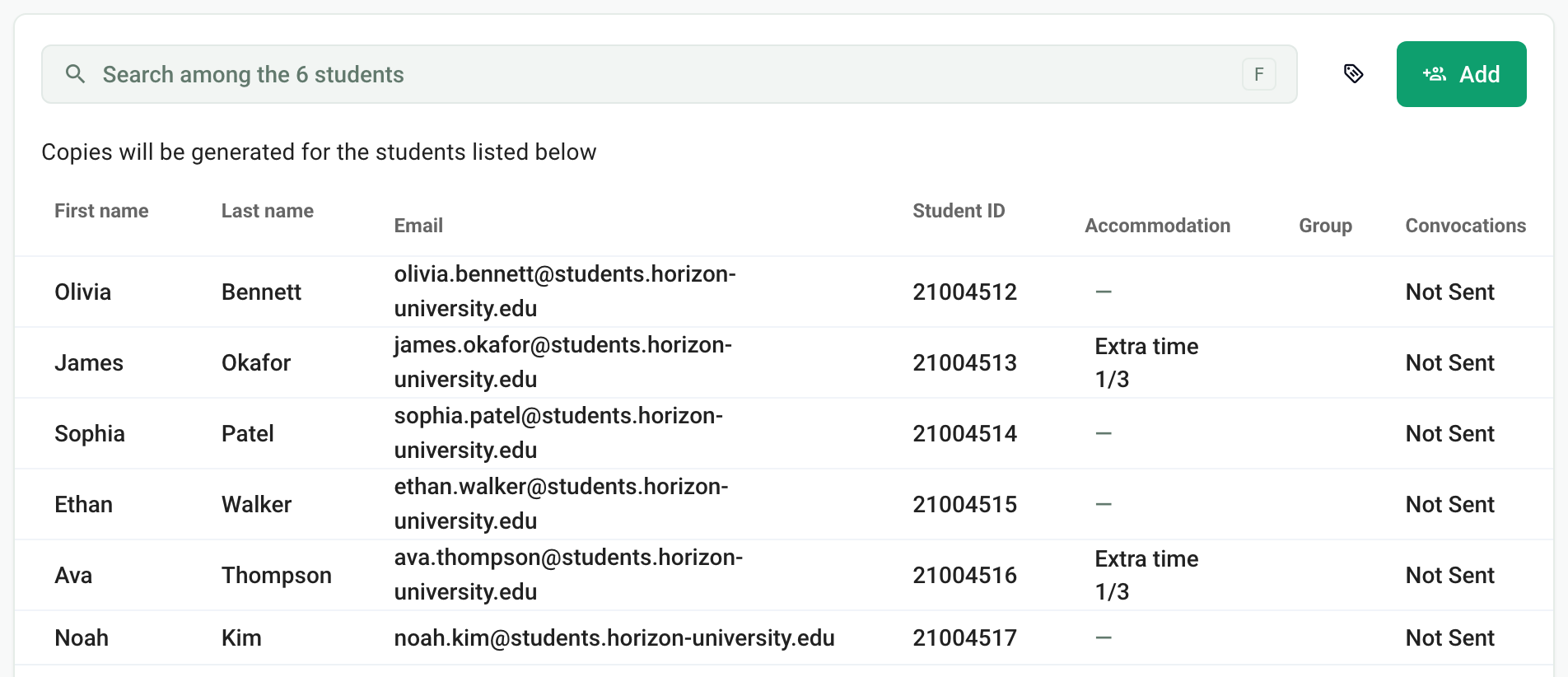
You can also import an Excel file with one column per attribute, whose header is the attribute name. If the file contains unknown columns, Papeez offers to Create the attributes or to Ignore these columns. An empty cell in the file does not erase a value already entered. See Import participants.
Print an attribute on the copies
In the Configure tab, Personalization of instructions card, place the cursor in Instructions for students:.
Type "/" then choose Variable: followed by the attribute name. You can also paste the copied variable.
Click Register, then generate the copies.
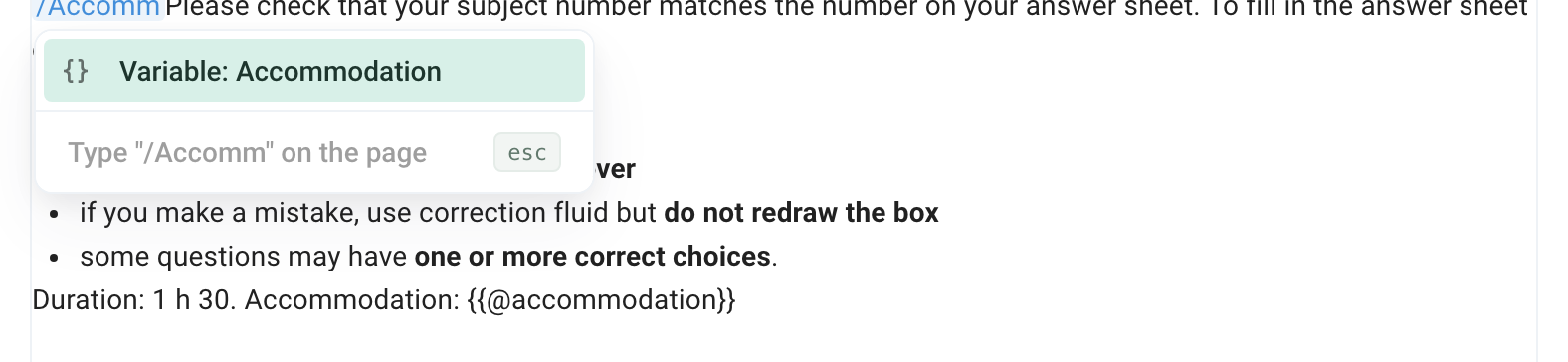
On each nominative copy, the variable is replaced by the participant's value. The card's preview shows the variable as is.
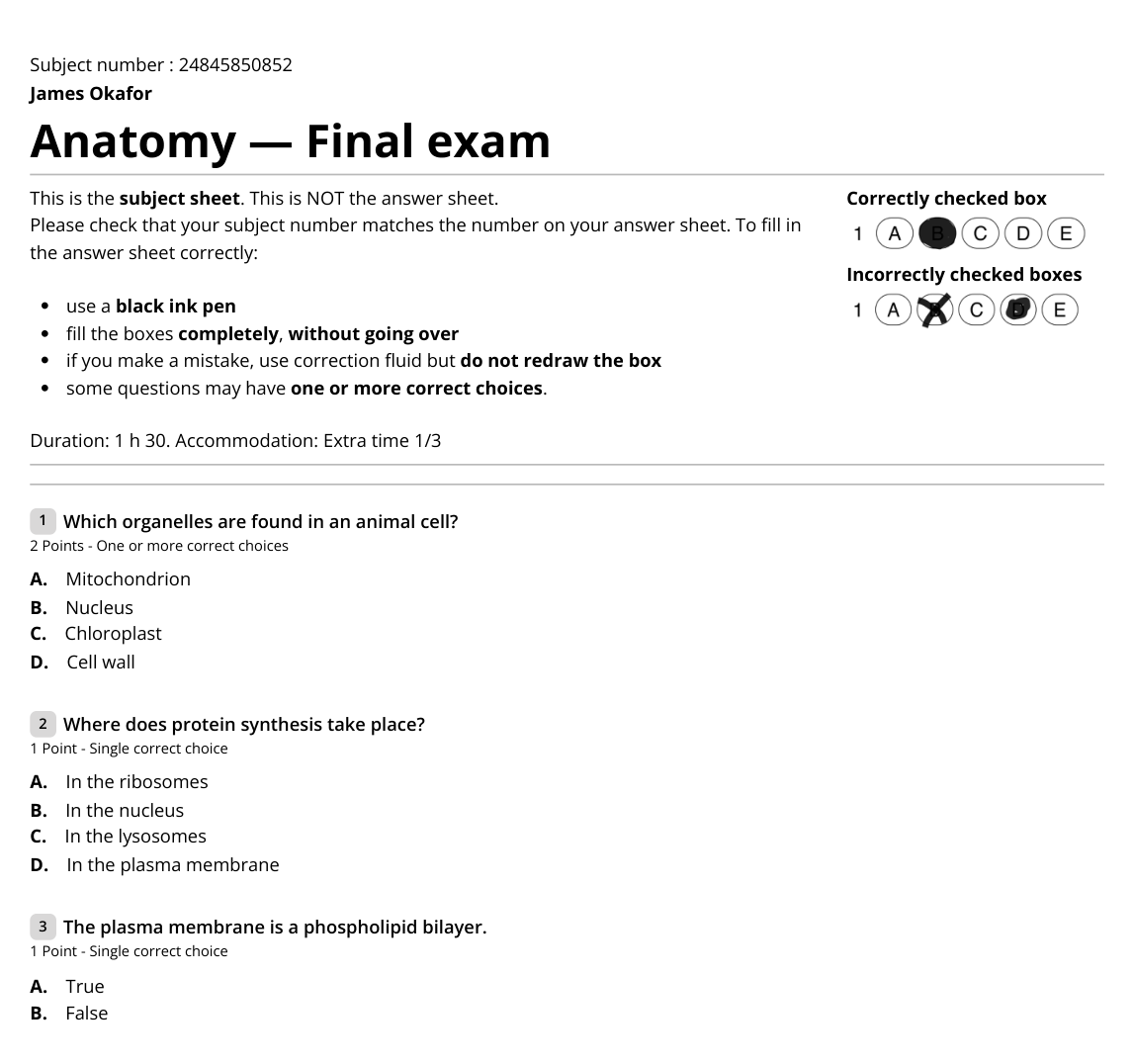
With anonymous copies, custom attributes stay empty: the copy is only linked to a participant at scan time. Nominative copies are generated once: after changing values, delete the copies and generate them again.
Print an attribute on graded submissions
In the Configure tab, Results card, turn on Custom block on graded submissions and insert the variable in the text. It is printed under the title of each graded submission. See Download graded submissions as PDF.
Limits
An exam can have up to 30 attributes. An attribute name is limited to 100 characters, a value to 255 characters.
Example use: flag the participants who have extra time, see Time accommodations and exam arrangements.
Was this helpful?
Still need help? Ask the team