Nominative or anonymous copies
Choose between copies printed with each participant's name and interchangeable copies, and what each mode means.
Written By Florian Barral
Last updated 9 days ago
The copy type decides how each printed copy is linked to a participant. Choose it before you generate the copies.
Choose the copy type
Open the Configure tab, Student identification card.
In Copy type, choose Nominative or Anonymous.
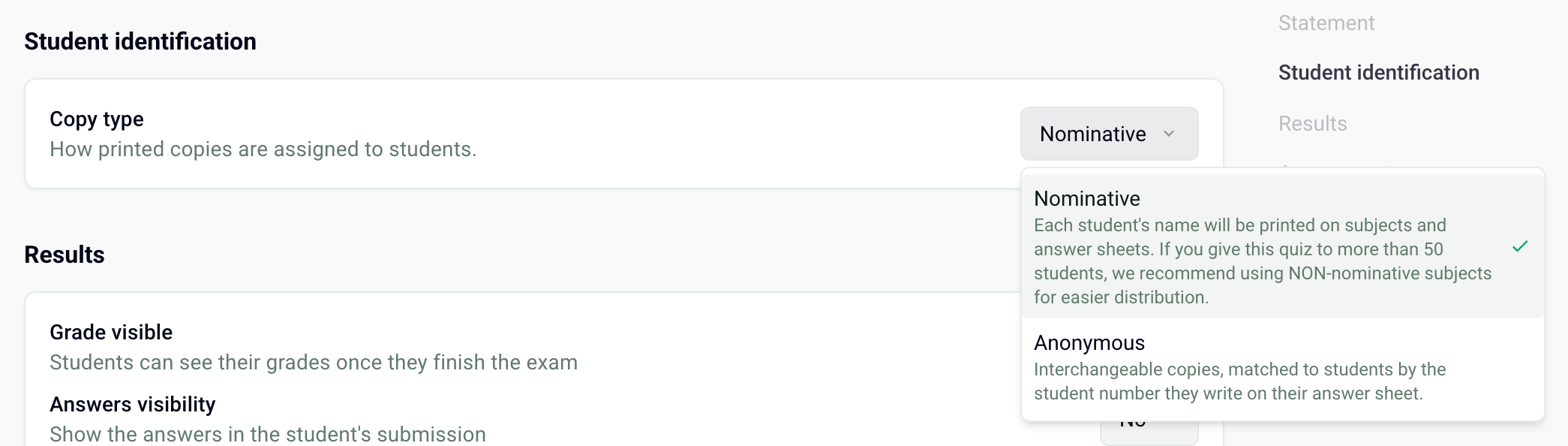
A new exam is set to Anonymous. Once the copies are generated, the copy type can no longer be changed: first delete the copies in the Print tab.
Compare the two modes
Beyond about fifty participants, anonymous mode makes distribution much simpler.
In anonymous mode: the student number
Papeez finds each copy by reading the first name, last name and student number written on the answer sheet and comparing them with the enrolled participants. The number is the most reliable field: import your participants with their student number.
Set Student number length to the number of digits in your student numbers: this is the number of boxes printed on the answer sheet.
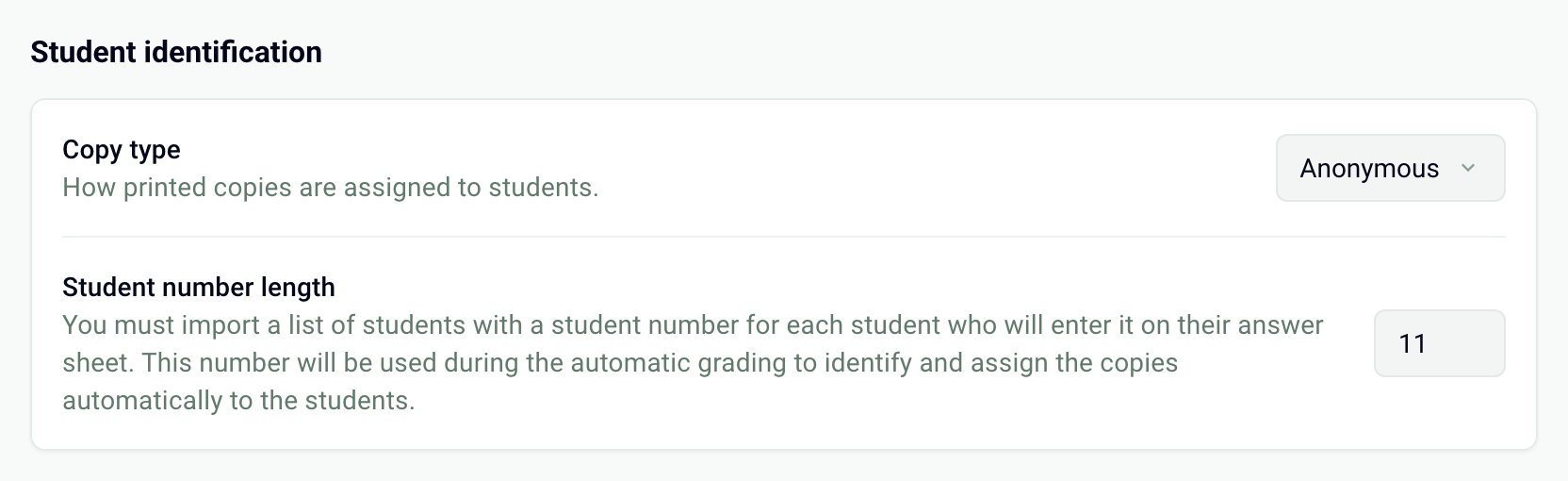
You can generate and print anonymous copies before enrolling your participants. However, importing the scans is blocked until at least one participant is enrolled. See Import participants and Match a copy to a participant.
In nominative mode: enroll the participants first
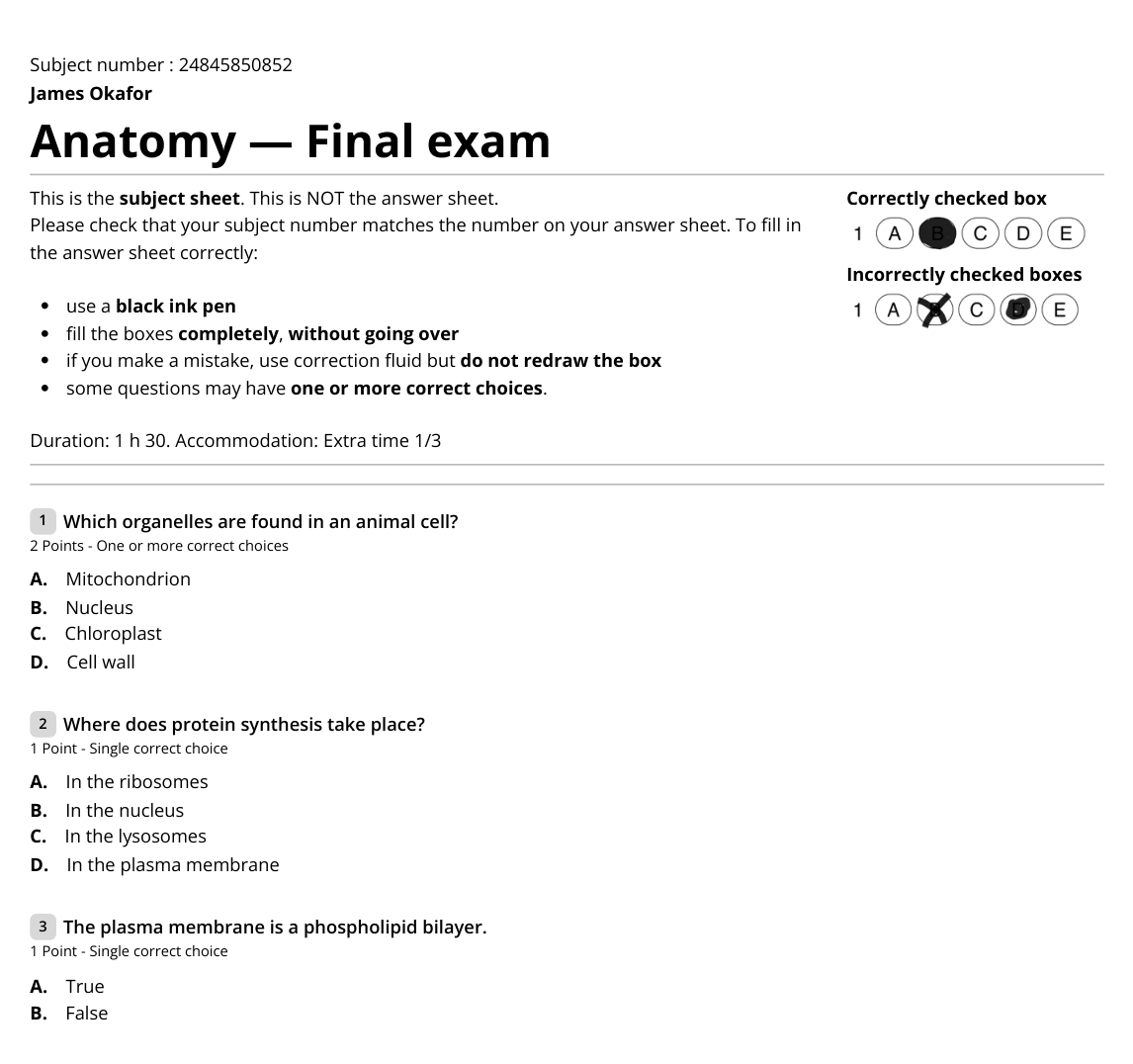
Papeez generates one copy per participant enrolled in the Students tab. With no participants, the Print tab shows "You must add students to generate copies." The printed name is the participant's first and last name, or their student number if there is no name. See Generate the copies to print.
Frequently asked questions
I can't generate a nominative copy
I can't generate a nominative copy
Check that the copy type is set to Nominative in the Configure tab, and that participants are enrolled in the Students tab. With no participants, the Print tab shows a message instead of the Generate copies button.
How do I generate a test copy in my name?
How do I generate a test copy in my name?
Your own address doesn't count as a participant: you manage the exam. Instead, enroll an alias of your address, for example first.last+test@your-domain.com, with the first and last name of your choice. Once the test is done, delete the copies in the Print tab, remove this participant, then generate the final copies.
My participants were imported without names. Can I add the names afterwards?
My participants were imported without names. Can I add the names afterwards?
Yes. Import an Excel file again with the same email addresses and the first name and last name columns: the names are updated. Do this before generating the copies. If the copies are already generated, delete them and generate them again: names are printed at generation time. See Import participants.
I only want the paper subjects, without using participants' email addresses
I only want the paper subjects, without using participants' email addresses
Choose Anonymous mode: you simply enter the number of copies to generate, without enrolling anyone. After generation, the Download copies menu also offers Subjects only (the subject sheets without answer sheets) and Answer sheets only. For a single copy of the subject, see Download the blank subject or answer key.
Can I grade anonymous copies by scanning them?
Can I grade anonymous copies by scanning them?
Yes. Enroll the participants with their student number before importing the scans: Papeez matches each sheet to the participant whose name and number correspond, and asks you to confirm when in doubt. See Match a copy to a participant.
Was this helpful?
Still need help? Ask the team