Generate the copies to print
Generate the copies of your exam, then download them for printing.
Written By Florian Barral
Last updated 9 days ago
In the Print tab, Papeez creates the copies of your exam. A copy contains the answer sheet the participant fills in and the question sheets. A barcode links each answer sheet to its copy: this is what lets Papeez grade the scans automatically.
Before generating
The subject is ready. Once the copies are generated, you can no longer edit the subject or the settings unless you delete the copies.
The copy type is chosen. Nominative copies (one per participant, with their name) or anonymous copies: see Nominative or anonymous copies.
In nominative mode, your participants are enrolled. Papeez generates one copy per participant enrolled in the Students tab. See Import participants.
Generate the copies
Open the Print tab.
In anonymous mode, enter the Number of subjects to generate. The link below the field fills in the number of enrolled participants.
Click Generate copies.
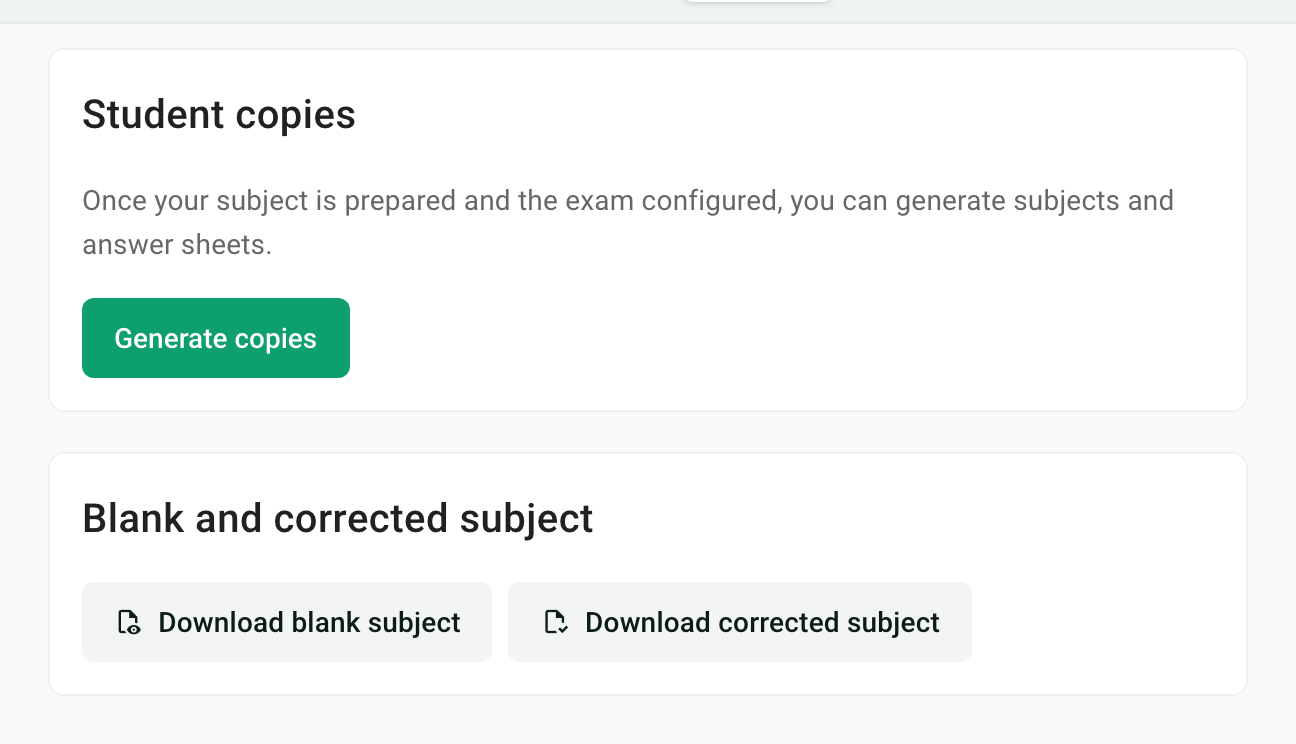
Generation takes from a few seconds to a few minutes, depending on the number of copies. You can leave the page: you get an email when the copies are ready.
Download the copies
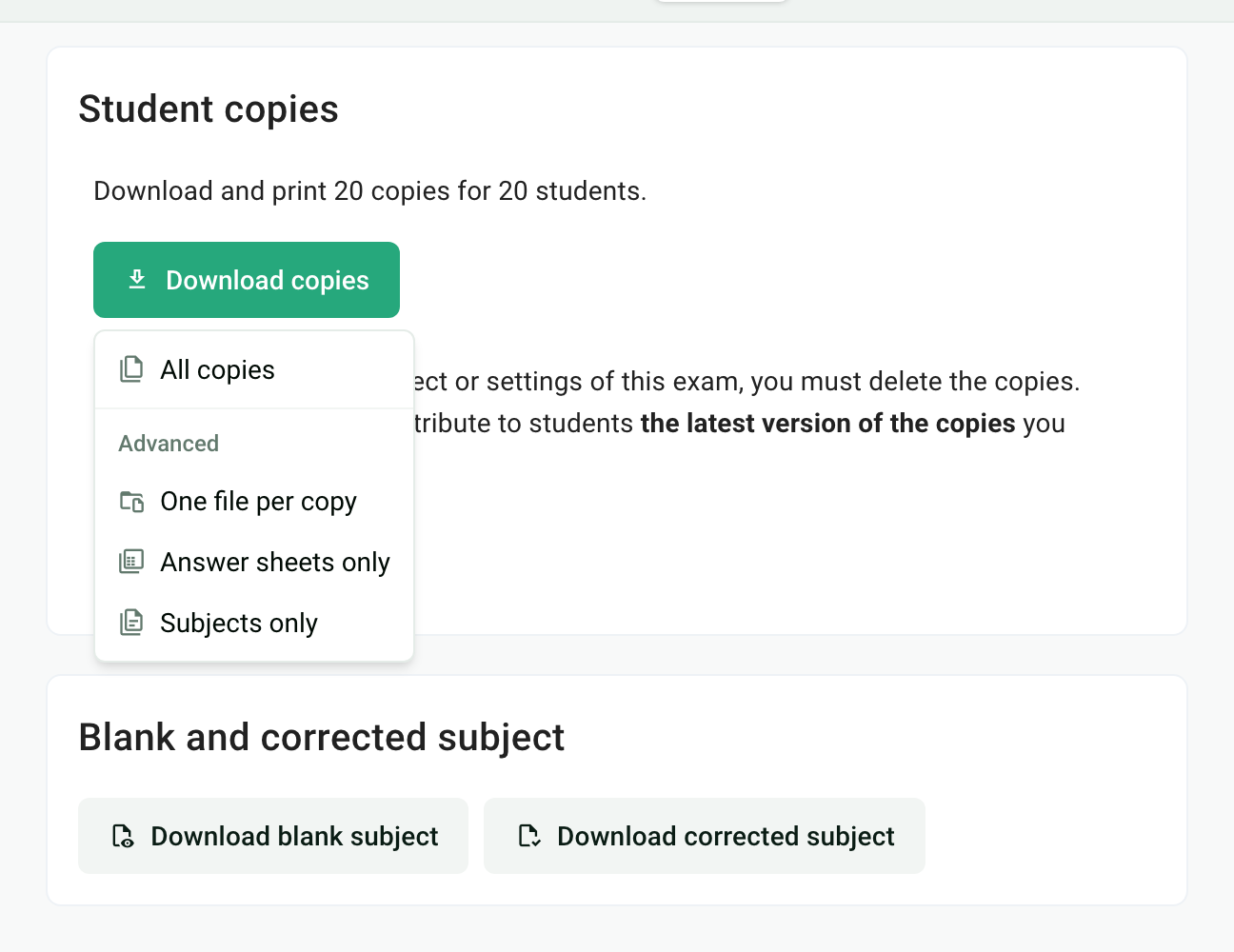
Click Download copies and choose the file:
All copies: a single PDF with every copy, in alphabetical order of participants. This is the one to print.
One file per copy: a .zip folder with one PDF per copy.
Answer sheets only: a PDF with only the answer sheets.
Subjects only: a PDF with only the question sheets.
Print double-sided. Each copy has an even number of pages, and Papeez adds blank pages so the answer sheet stays alone on its sheet. See Why are there blank pages in my copies?.
The file won't open or shows an error? See The copies fail to download.
Edit the subject after generating
To edit the subject or the settings, click Delete copies, make your changes, then generate the copies again.
Only print and hand out the latest version of the copies. Answer sheets from a deleted version are no longer recognized when scanned.
Frequently asked questions
The number of copies does not match the number of participants
The number of copies does not match the number of participants
In nominative mode, Papeez generates one copy per participant enrolled at the time of generation. If you enroll or remove participants afterwards, a message asks you to regenerate the copies: delete them, then generate them again.
In anonymous mode, Papeez generates the number entered in Number of subjects to generate, whatever the number of enrolled participants. Check this number before generating.
The Generate copies button is back
The Generate copies button is back
Reload the page first: if the exam is open in several tabs, one of them may show an old state.
If the button is still there, the copies no longer exist (they were deleted, by you or a colleague). Generate them again and only print this new version.
Generation never finishes
Generation never finishes
Click Cancel generation, then Generate copies. If generation is still stuck, write to us from the help chat with the name of the exam.
The Generate copies button is grayed out or generation fails
The Generate copies button is grayed out or generation fails
Check these three points:
In nominative mode, no participant is enrolled. Papeez then shows a button to add some.
The subject contains errors. The subject editor flags them at the top right (for example "2 Errors"): a question has fewer than two choices, an MCQ has no correct answer, or an SCQ does not have exactly one. Fix them, then generate.
An exercise pool is not valid. The error message names the pool and the problem.
Run an exam in several languages
Run an exam in several languages
Create one exam per language. For each one, translate the subject and the texts printed on the copies (instructions, answer sheet fields): see Customize the instructions and sheets.
Was this helpful?
Still need help? Ask the team