View an exam's activity
Who changed the subject, the settings or a grade, and when: an exam's log and its filters.
Written By Florian Barral
Last updated 9 days ago
An exam's activity is its log: who changed the subject, changed a setting or graded a copy, and when. It helps you trace the origin of a change, for example when several colleagues work on the same exam.
It is reserved for the Organization plan, and for people who can configure the exam. The history is recorded on every plan: if you move to the Organization plan, you also get the past activity.
Open the activity
Open the exam.
At the top right, click ⋮ then Activity.
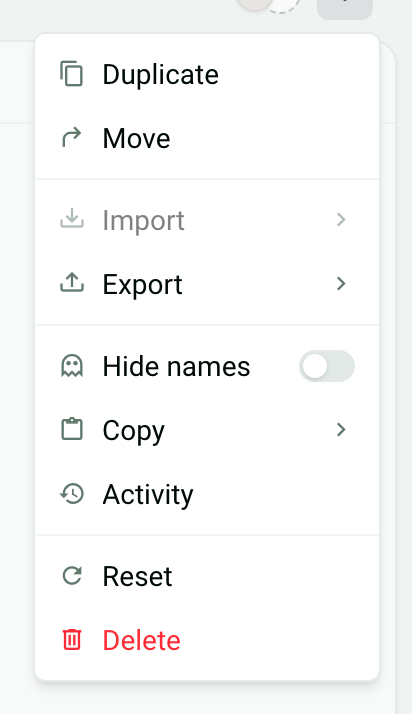
On another plan, the Activity entry stays visible but grayed out, with the name of the plan that includes it: a click leads to the plans.
Read the log
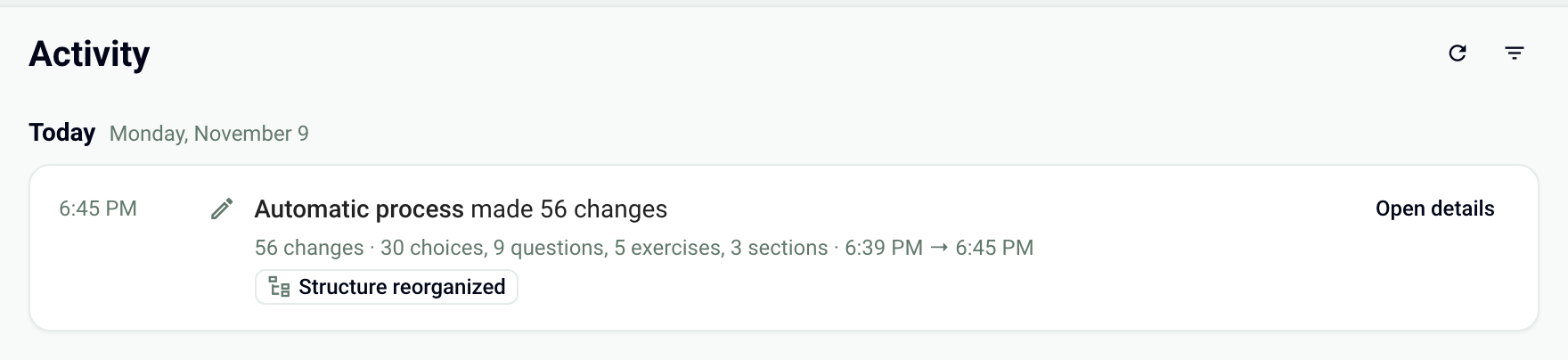
The activity is grouped by day (Today, Yesterday, then the date). Each line shows the author, what they did and the time. The most recent are at the top; scroll to load older ones, or click Load more. The Refresh button reloads the log.
What is recorded
The exam: creation, name, instructions, emails, grading scheme and settings.
The subject: sections, exercises, questions, choices, exercise pools and random exercises created, changed or deleted.
Participants: participants added and removed, with View list to see who.
Grading: grades given by hand, with View submission to open the submission concerned.
Bulk operations, such as importing a subject, with their status: In progress, Completed, Interrupted or Failed.
Grouped changes
A series of changes made by the same person is grouped into a single line, for example "changed the subject" or "graded copies", with the number of changes. Click a line to expand it, or Open details for a longer group. Expand all and Collapse all act on all groups. For a content change, the detail shows the Before and After states.
The Automatic process author stands for an action done by Papeez with nobody behind it. The Structure reorganized badge flags elements moved in the subject.
Filter the activity
Click the filter icon at the top right and combine the criteria: Period, Author and Item type (Exam, Questions, Choices, Sections, Exercises, Exercise pools…). The filters stay in the page address: you can share it with a colleague who has access to the exam.
History of a single question
In the Create step, the ⋮ menu of a section, exercise, question or choice shows its last modification date and the History entry, which opens the log of that element only.
Was this helpful?
Still need help? Ask the team