Customize the instructions and sheets
Rewrite the instructions and printed labels, including the hint under each MCQ or single-choice question.
Written By Florian Barral
Last updated 9 days ago
You can rewrite the instructions printed at the top of each copy and all the labels on the sheets: checked boxes, subject number, participant fields, the hint under each question.
Edit the instructions
Open the Configure tab, Personalization of instructions card. The preview at the top shows the header of the subject sheet.
Edit the text under Instructions for students:.
Click Register, at the bottom of the card.
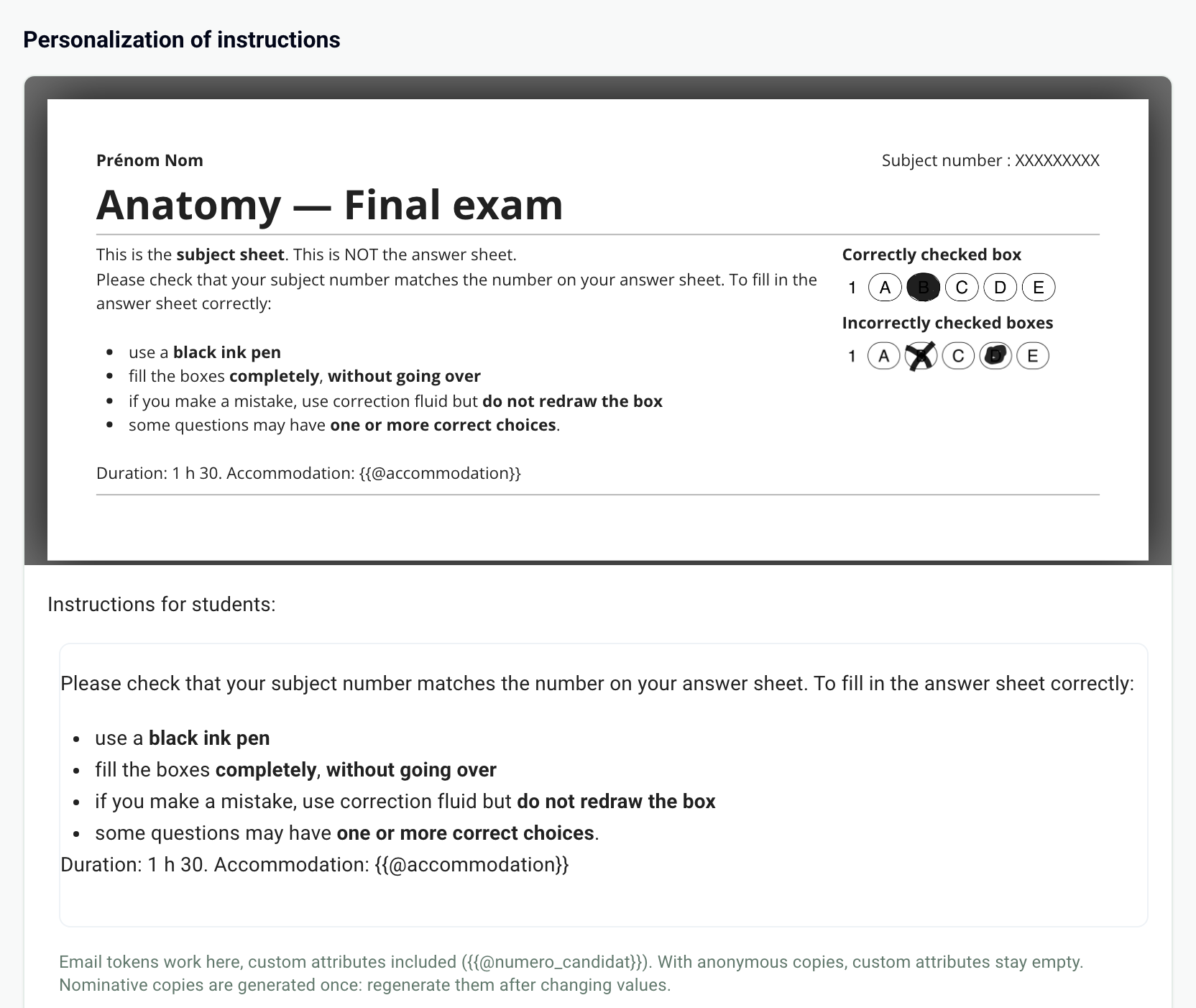
Changes in this card are only saved when you click Register.
Edit the sheet labels
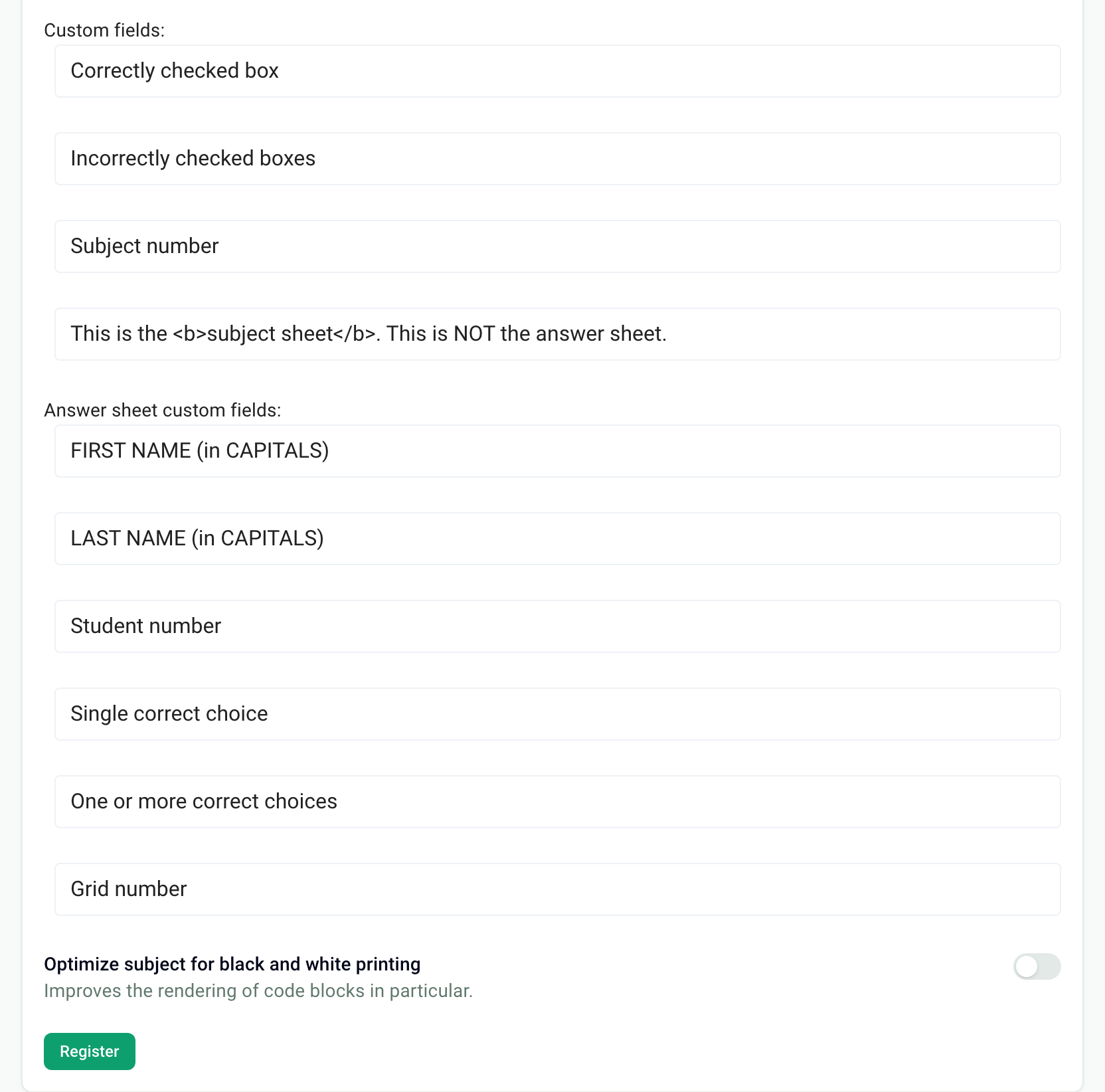
Under Custom fields: and Answer sheet custom fields:, each field contains the printed text. Edit it, then click Register.
The hint under each question
Under each question, Papeez prints its points followed by a label, for example "2 Points - Un ou plusieurs choix corrects" (one or more correct choices). The label depends on the question type, not on the number of correct answers: all multiple-choice questions show the same text, all single-choice and True/False questions show the other.
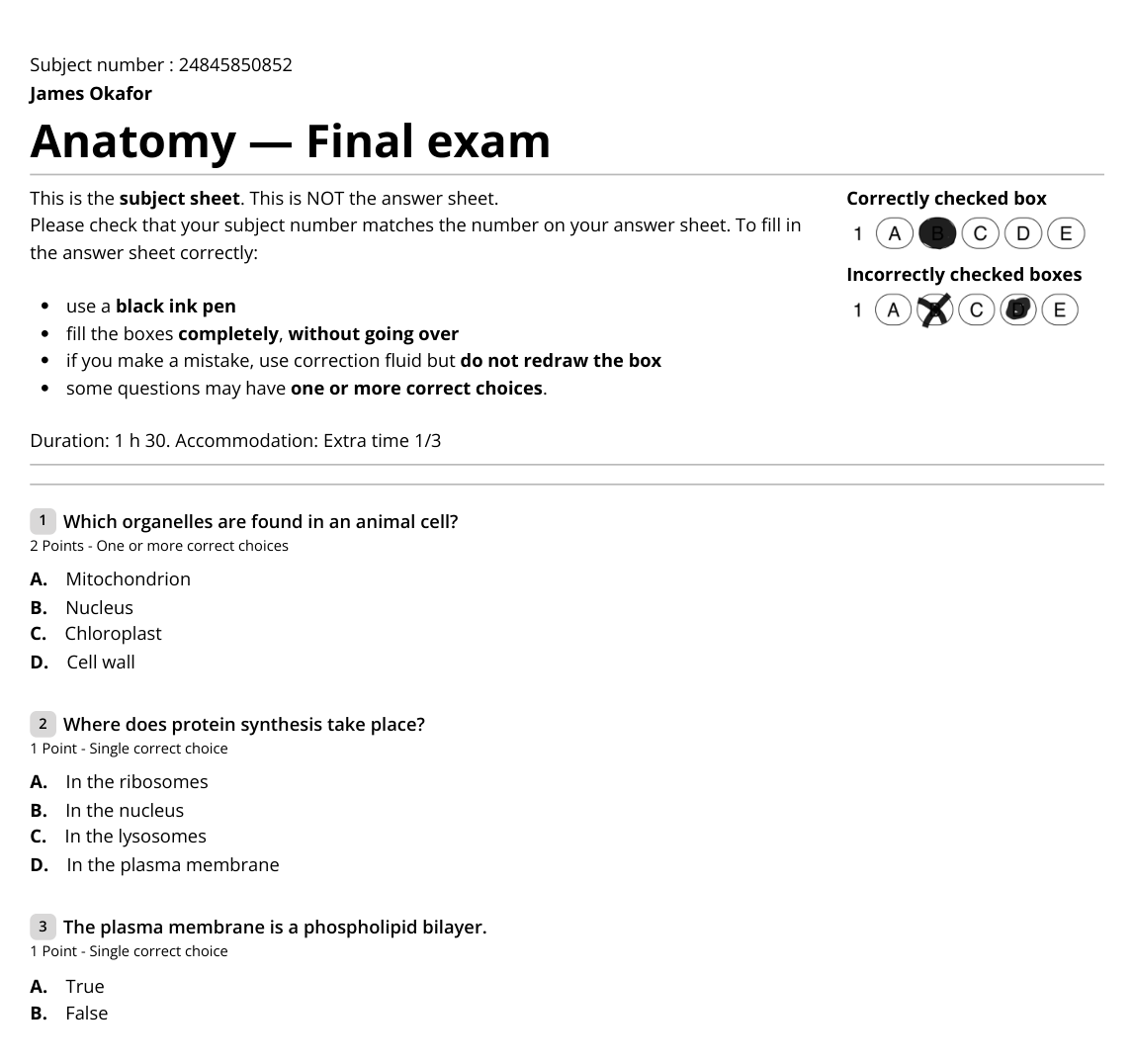
To lighten the page, replace these labels with shorter text, for example "MCQ" and "SCQ". There is no option to hide this line: if you empty the field, the points are still printed, followed by a dash.
Copies in a language other than French
The default instructions and labels are always in French, whatever the language of your account. For copies in English or another language, rewrite the instructions and each label in that language, then click Register. The word "Points" under the questions is already translated.
Print in black and white
Turn on Optimize subject for black and white printing: code blocks in particular are easier to read.
Frequently asked questions
The fields in the card are grayed out
The fields in the card are grayed out
The copies are already generated. Delete them in the Print tab, edit the instructions, then generate the copies again. See Generate the copies to print.
Can I remove the student number or change the number of boxes?
Can I remove the student number or change the number of boxes?
The answer sheet fields cannot be removed. In anonymous mode, the number of student number boxes is set in Student number length. See Nominative or anonymous copies and Understand the answer sheet.
Can I print information specific to each participant?
Can I print information specific to each participant?
Yes, with nominative copies: insert a custom attribute in the instructions. See Add custom attributes.
Was this helpful?
Still need help? Ask the team