Share grades with participants
Email grades to all participants or to one, with a link to their graded submission.
Written By Florian Barral
Last updated 9 days ago
Send each participant an email with their grade, and give them access to their graded submission online.
Choose what participants see
In the Results › Share tab:
Grade visible: the participant sees their grade online.
Answers visibility: set to After submission, they see their answers with the correct answers.
If one of these options is on, the email contains a personal link to their graded exam page, with their analyzed answer sheet. Otherwise, the email only gives the grade.
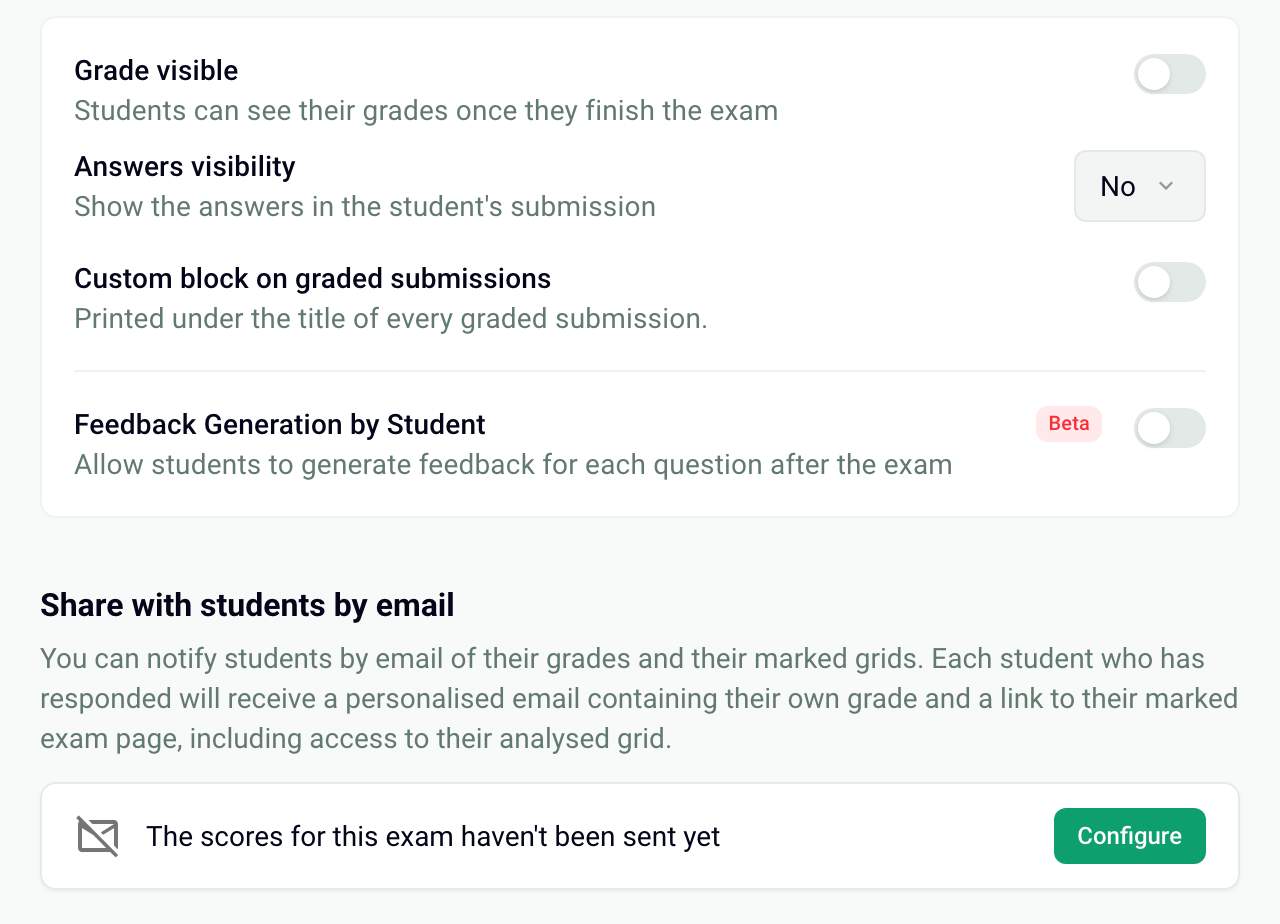
Send grades to all participants
In Share with students by email, click Configure.
Choose a template, then customize the subject line and the text. The grade variable is replaced with each participant's grade.
Click Send grades, then confirm with Send.
Only participants who have a grade receive the email. A scanned copy not yet matched to a participant gives no grade: handle the pages to review first (see Handle the pages to review). The card then shows the sending date.
Resend the grade to a single participant
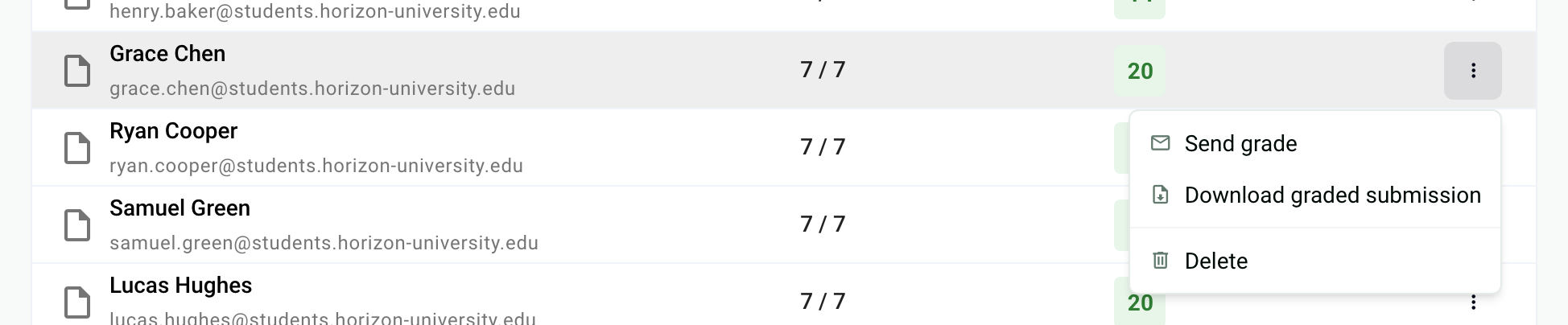
Open the Results › Grades tab.
Click ⋮ on the participant's row, then Send grade.
Check the email, then click Send grade.
The text is the same as for sending to everyone: a change made here also changes the shared email.
Frequently asked questions
Is the graded submission attached to the email?
Is the graded submission attached to the email?
No: the email contains a link to the submission online, not an attachment. To get the submissions as PDF, see Download graded submissions as PDF.
A participant did not receive their grade
A participant did not receive their grade
Check their address in Assign › Students (a dummy address receives nothing) and ask them to look in their spam folder. Also check that they have a grade in Results › Grades. Then resend their grade on its own. See View grades and submissions.
I fixed the subject after sending
I fixed the subject after sending
Recalculate the grades, then send them again: the email contains the grade at the time it was sent. See Fix the subject and recalculate grades.
The participant does not see the correct answers
The participant does not see the correct answers
Set Answers visibility to After submission, and turn on Grade visible so they also see their grade.
Was this helpful?
Still need help? Ask the team