Download graded submissions as PDF
Download a participant's graded submission, or export all submissions as one PDF or a .zip file.
Written By Florian Barral
Last updated 9 days ago
The graded submission is one PDF per participant: their name, student ID, grade and your feedback, then the subject in the order they received it, with the boxes they checked and the correct answers circled.
Download a participant's submission
In the Results › Grades tab, click ⋮ on the participant's row, then Download graded submission. The participant's page has the same Download graded submission button at the top.
Export all submissions
In the Results › Grades tab, click Export.
In the SUBMISSIONS section, choose Archive of submissions or All submissions.
Check the email address that will receive the file, then click Export.
The two formats:
Archive of submissions: a .zip file with one PDF per participant, ideal for archiving.
All submissions: a single PDF with all submissions, ideal for printing.
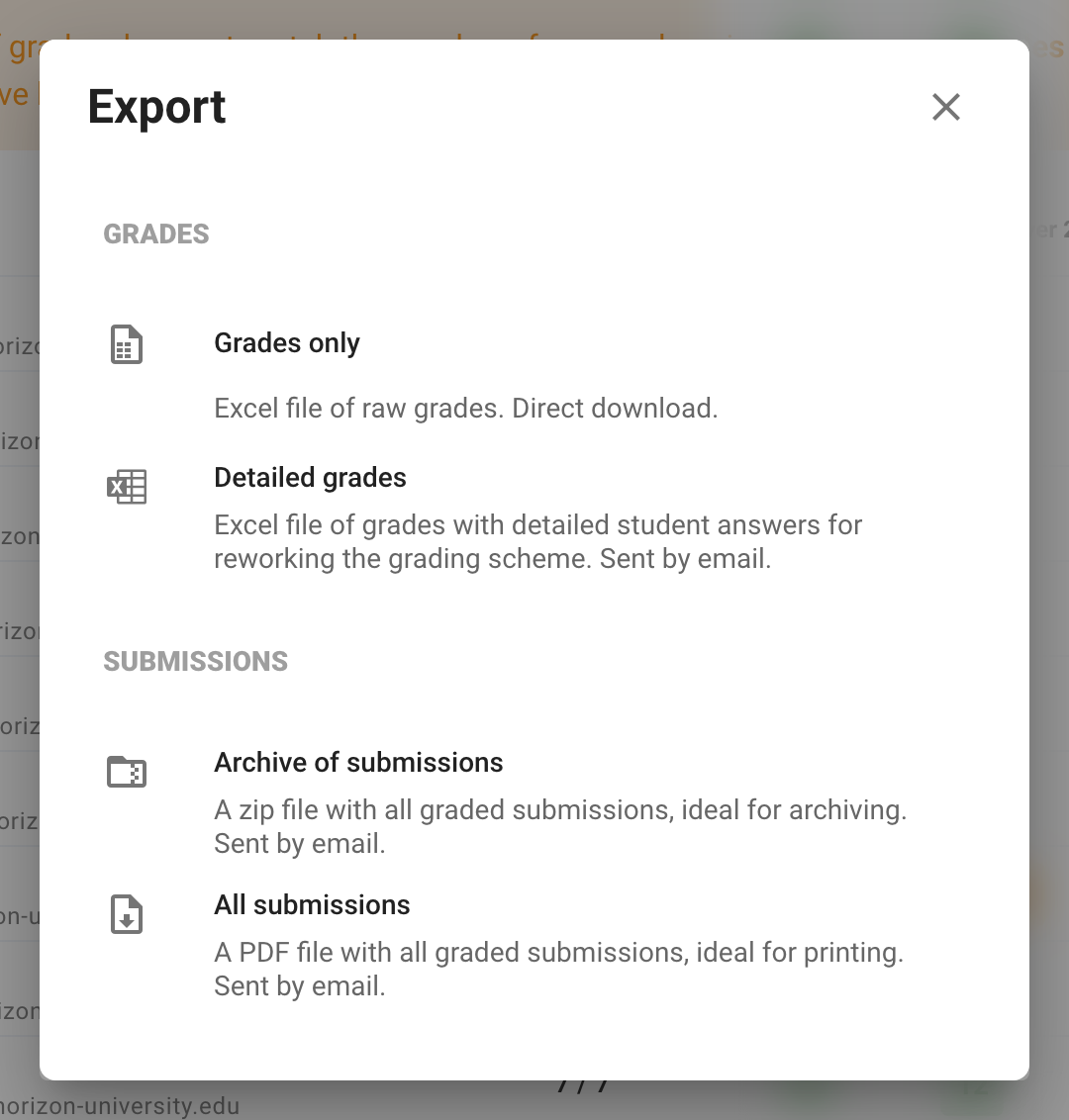
The file is prepared in the background: you receive it by email a few minutes later.
Add a block to each submission
To print a text under the title of each submission (viewing instructions, exam board information…):
Open the Results › Share tab.
Turn on Custom block on graded submissions.
Write the text. Insert a variable adds each participant's name, student ID, grade or a custom attribute.
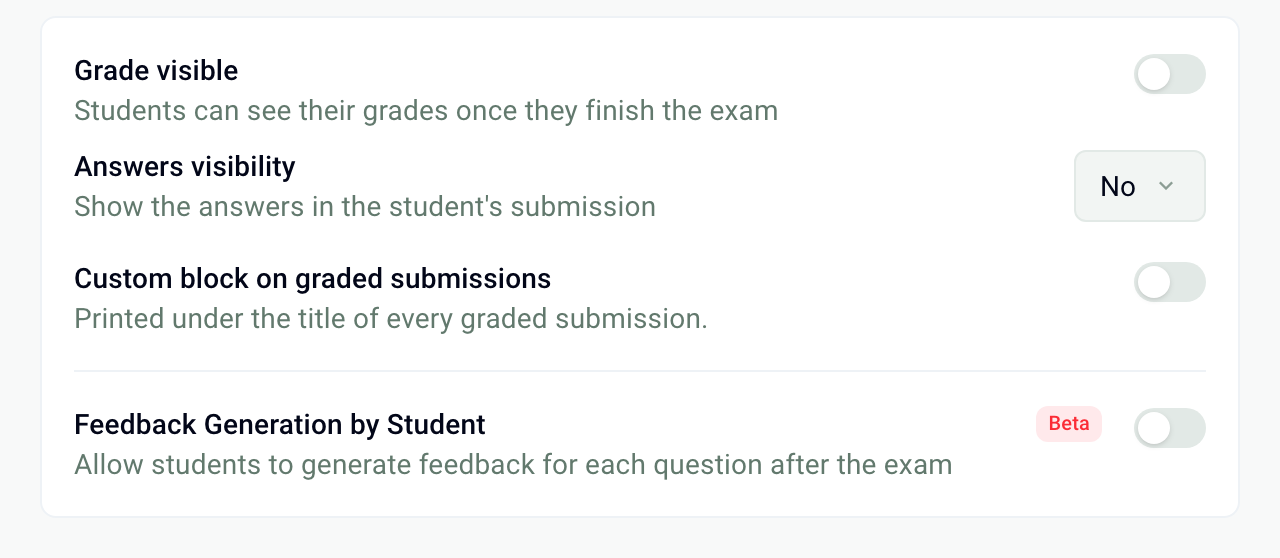
The text is saved automatically. The same setting is in Configure › Settings, Results section.
Submissions always up to date
Papeez creates the submissions when you download or export them, from the grades at that moment. After fixing the subject or the boxes read, a file downloaded earlier does not change: download or export it again. See Fix the subject and recalculate grades.
Frequently asked questions
A participant is missing from the export
A participant is missing from the export
The export contains one submission per participant who has a grade. If their scanned sheet is not yet matched to their name, handle the pages to review. See Handle the pages to review.
How do I add a comment to a submission?
How do I add a comment to a submission?
Open the participant's submission and fill in the feedback field at the top of the page: the text is printed under the grade on their graded submission. See View grades and submissions.
Was this helpful?
Still need help? Ask the team