Import the scans
Import the scanned answer sheets: Papeez analyzes them and calculates the grades.
Written By Florian Barral
Last updated 9 days ago
Once the exam is over, scan the filled-in answer sheets and import them into Papeez. Each page is analyzed automatically: Papeez reads the barcode, finds the copy and the participant, then reads the filled-in boxes and calculates the grade.
Before importing
Scan only the answer sheets, not the question sheets. For scanner settings, see Scan the answer sheets correctly.
In anonymous mode, enroll your participants first. Papeez finds each copy from the name and student number written on the sheet: it compares what it reads with the list of enrolled participants. As long as nobody is enrolled, the import is blocked. See Import participants.
Import the files
Open the Scan tab, then Import scans.
Drag and drop your PDF files into the import area, or click it to choose them.
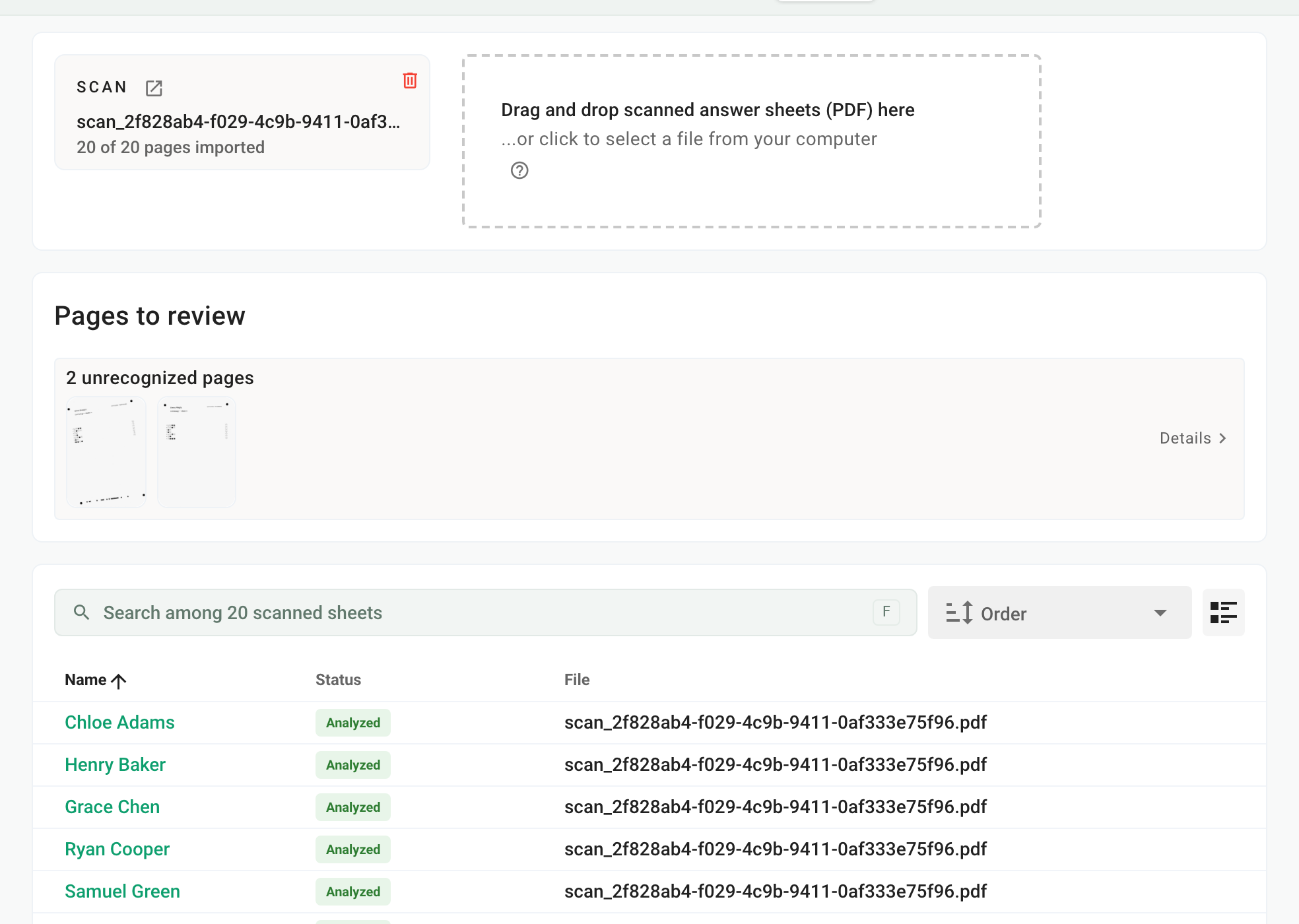
You can import several PDFs, at once or in several goes, and each PDF can hold as many sheets as you like. Page order does not matter: the barcode is enough to find each copy. A file must not exceed 20 MB: above that, scan into several files.
Follow the analysis
A progress bar shows the number of pages already analyzed. The grades appear as they come in the Results tab.
When a page needs your attention, it appears in the Pages to review block: unrecognized page, participant to validate manually, or participant not found. See Handle the pages to review.
Find a scanned copy
Below the import area, the list of scanned sheets shows the participant, the analysis status and the source file for each page. Click a row to see the page, with the boxes read by Papeez.
Delete an imported file
To remove a file imported by mistake, click the trash icon on its card. All its pages are deleted, along with the grades calculated from them.
Import copies taken as photos
Papeez is designed for pages run through a scanner. If you don't have one, use a document-scanning app on your phone (such as Microsoft Lens or the scan tool in Notes on iPhone) that directly produces a cropped PDF. Photograph each sheet flat, straight, on a light background, with its four corners visible.
Frequently asked questions
The import button does not appear
The import button does not appear
In anonymous mode, importing is only possible once participants are enrolled. Papeez then shows the Add students button. See Import participants.
I imported the same file twice
I imported the same file twice
Pages already analyzed are flagged as Duplicate in the unrecognized pages: archive them. Grades are not counted twice. See What to do with an unrecognized page?.
The number of grades does not match the number of scanned copies
The number of grades does not match the number of scanned copies
Papeez shows this warning when scanned pages are not yet matched to a participant. Handle the pages to review: see Handle the pages to review.
Was this helpful?
Still need help? Ask the team