Send convocations to participants by email
Send the convocation email to participants, and update its text after a change.
Written By Florian Barral
Last updated 9 days ago
The convocation is the email sent to each participant before the exam. It repeats the answer sheet instructions and the grading scheme. In anonymous mode, it also reminds the participant of the student ID to write on their answer sheet.
Prepare the email
Open the Assign › Invitations tab.
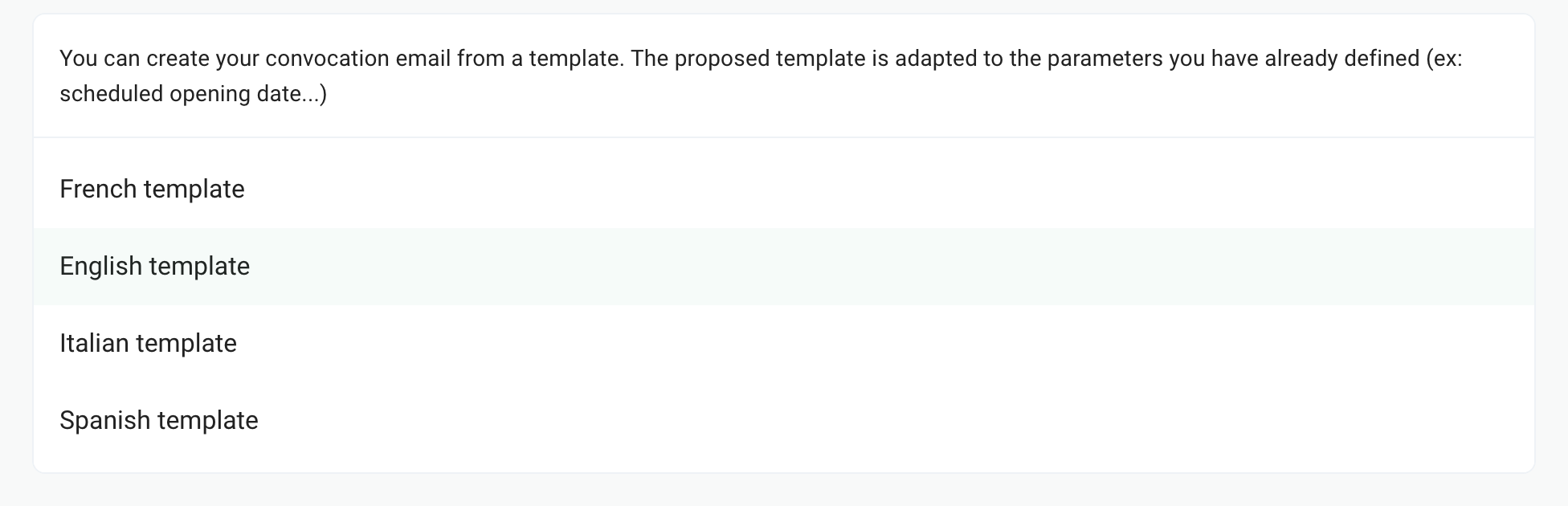
Choose a template: French template, English template, Italian template or Spanish template.
Customize the email if needed: the Subject: field, the text, and Insert a variable to add each participant's first name, student ID or a custom attribute.
Click Preview to check how it looks.
The template contains the exam name, your Instructions for students (Configure › Settings tab, Personalization of instructions section), a grading scheme and your name. This grading scheme is a standard text (single and multiple choice questions): check that it matches your exam's, and fix it if not. The email is saved automatically. In Advanced options, you can change the sender name and the reply-to address.
Send the convocations to all participants
Click Send convocations, then confirm with Send. In the Students tab, the Convocations column shows for each participant whether the email was sent.
Send to one or more participants
To remind some participants, or to convoke a participant enrolled after the sending:
In the Assign › Students tab, select the participants.
Click Send convocation in the bar that appears, then send.
The window uses the email prepared in the Invitations tab: prepare it there first.
The text does not follow changes to the exam
This is expected: the template is copied when you choose it. If you then change the instructions in the settings, or rename the exam, the email keeps the old text.
To update the text, click Use template, then choose the language: the text is recreated from the current settings. It replaces the current text, your customizations included.
To fix the subject line, edit the Subject: field at the top of the email. It is filled with the exam name when the exam is created or duplicated, and never changes after that.
In the text, the exam name is a variable: it is always up to date when the email is sent.
Frequently asked questions
I duplicated an exam: the convocation has the old text
I duplicated an exam: the convocation has the old text
Duplicating copies the email of the original exam, with its instructions. Only the subject line takes the new exam's name. Click Use template to recreate the text from the new exam's settings.
The Send convocations button is grayed out
The Send convocations button is grayed out
The email is empty: choose a template or write your text first.
A participant did not receive their convocation
A participant did not receive their convocation
Check their address in the Students tab and ask them to look in their spam folder. Then send them their convocation on its own. See Import participants.
Was this helpful?
Still need help? Ask the team