Organize questions with tags
Add tags to questions, print them and use them in statistics and exports.
Written By Florian Barral
Last updated 9 days ago
Tags classify questions by chapter, difficulty or skill. They let you filter statistics and export grades by tag. You can also print them on the subject.
Add tags to a question
Hover over the question.
Click Add tags, next to the points.
Click the tags to add. A question can have several.
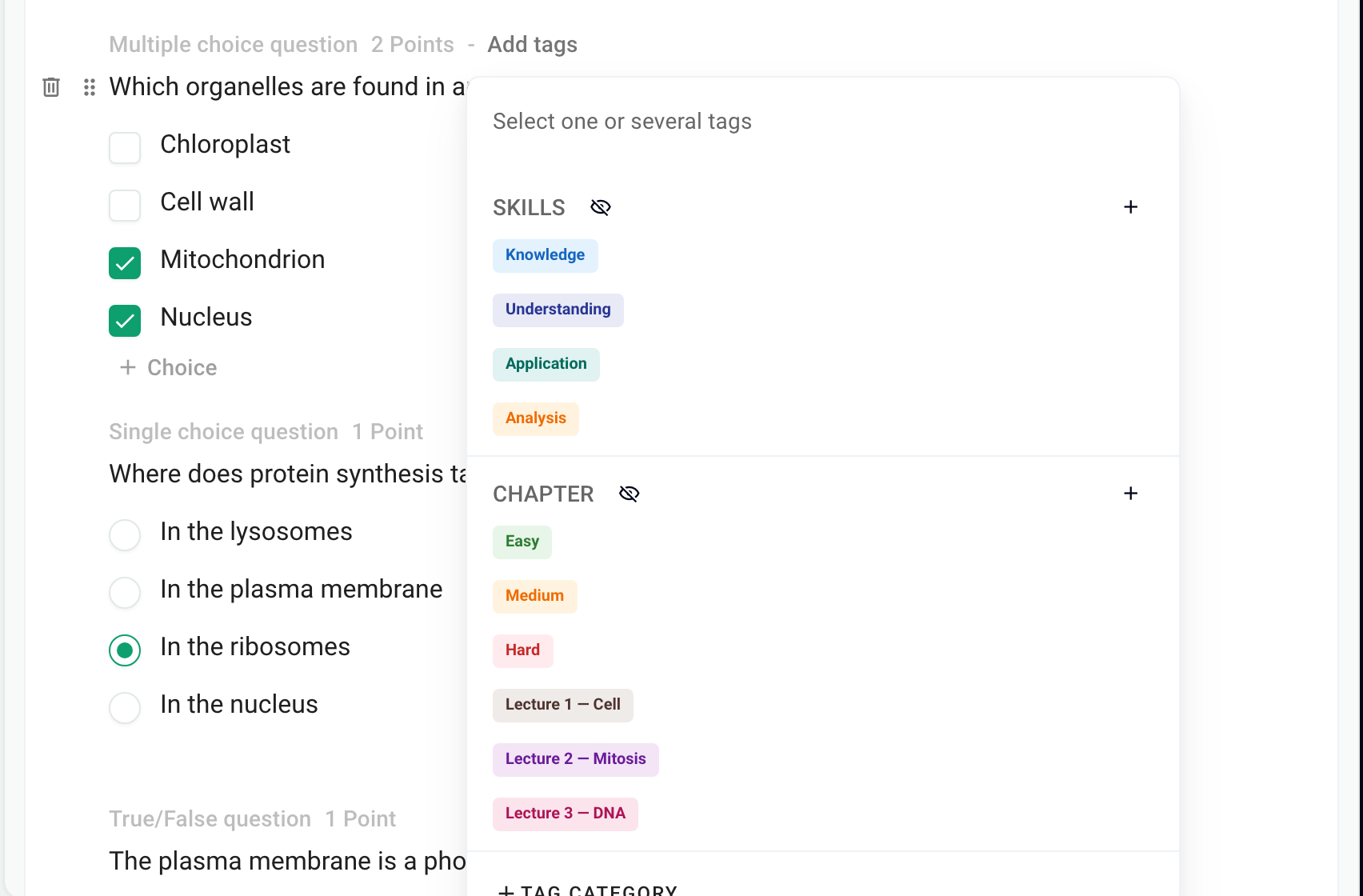
A new exam comes with two categories: Difficulty (Easy, Medium, Hard) and Skills (Knowledge, Understanding, Application, Analysis). Tags and categories are specific to each exam.
Create and edit tags
+ Tag category, at the bottom of the menu, creates a category (for example Chapter).
The + to the right of a category adds a tag to it.
The pencil, when you hover over a tag, lets you rename it, change its color or delete it. Click a category's name to edit it.
Print tags on the subject
By default, tags are not printed. Click the eye icon next to a category's name: the label Visible appears, and the tags of this category are printed as small labels in front of each question. Useful to tell participants the chapter or the difficulty.
Use tags
Statistics: in the Results step, Statistics tab, Filter by tags shows only the questions of the chosen tags. See View statistics.
Grade export: the Detailed grades per tag export (beta) adds a grade per tag for each participant to the detailed grades. It is sent by email. See Export grades.
Tags can also be imported from Excel, with the Tag category and Tag columns. See Import a subject from Excel.
Was this helpful?
Still need help? Ask the team