Import a subject from Excel
Fill in the Excel template, one row per question, and import the whole subject.
Written By Florian Barral
Last updated 9 days ago
Excel is the most complete format for importing a subject: one row per question, with its choices, its correct answer, its points and its exercise.
Import an Excel file
In the Create › Subject tab, click Import. The button shows as long as the subject is empty; otherwise, go through the exam's ⋮ menu › Import › Subject.
Choose Excel.
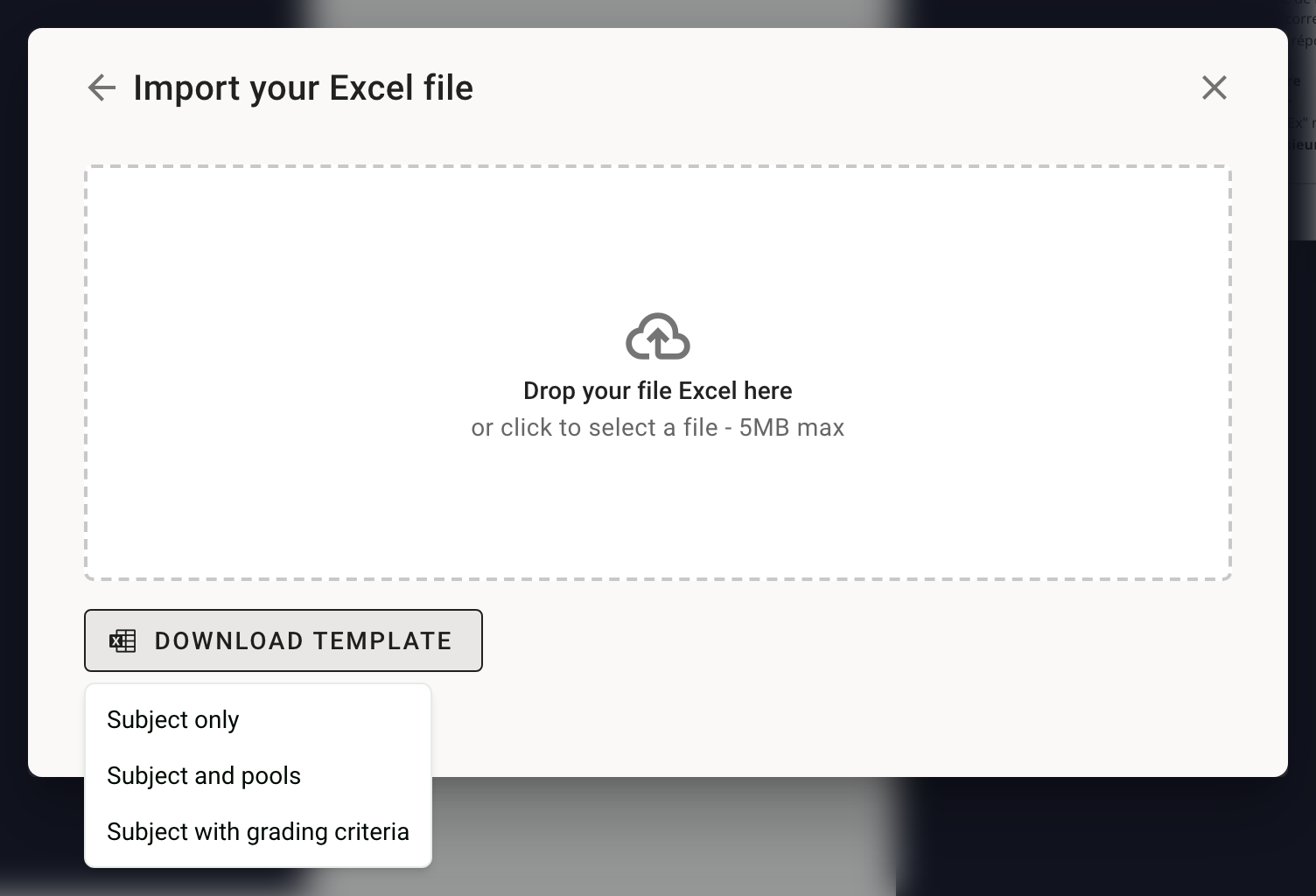
Click Download template › Subject only. The file contains a Guide sheet explaining each column, and a Subject sheet with examples.
Fill in the Subject sheet, one row per question, then drop the file into the import area (5 MB max).
The questions must be in a sheet named Subject. If the sheet has another name, the import finishes without a message but the subject stays empty.
An import replaces the whole subject: sections, exercises and questions. Import before generating the copies: once the copies are generated, the subject can no longer be edited (except points, correct answers, tags and grading comments).
The columns
SCQ or MCQ
The Question type column decides. A QCU question with several numbers in Correct choices is imported as an MCQ. You can also change the type after the import, in the editor.
Formatting
Line break in a cell: Alt + Enter (Option + Enter on Mac).
Bold and italic:
**bold**,*italic*.Formulas: between
$…$, for example$\frac{1}{2}$. Never start a cell with=: Excel would take it for a calculation.Images: they are not imported. Add them afterwards in the editor. See Edit and format content.
Frequently asked questions
The import finishes but the subject stays empty
The import finishes but the subject stays empty
The sheet holding the questions is not called Subject. Rename it, or copy your rows into the template's Subject sheet, then import again.
Some questions are missing after the import
Some questions are missing after the import
Check the Question type column of those rows: a row with no type, or an unknown type, is skipped.
The correct answers are wrong
The correct answers are wrong
Excel turns 1,5 into a number and 3/4 into a date if the column is not in Text format. In the template, the Correct choices and Choice columns are already in Text format: keep them that way, and if you paste cells from another file, use Paste Values.
The import fails
The import fails
If a row is invalid, nothing is imported: fix the row named in the message, then try again. If the message is unclear, write to us from the help chat with the file.
All the questions are MCQs
All the questions are MCQs
Write QCU in the Question type column of single-answer questions, with a single number in Correct choices.
How do I avoid mistakes when I prepare many subjects?
How do I avoid mistakes when I prepare many subjects?
Always start from the template downloaded from Papeez and keep the sheet named Subject. Import a few rows first to test. After each import, check in the editor each question's type, the correct answers and the points. A mistake found after the exam can still be fixed: change the correct answer, then recalculate the grades.
Was this helpful?
Still need help? Ask the team