Import a subject from Moodle XML
Export your questions from Moodle and import them into Papeez.
Written By Florian Barral
Last updated 9 days ago
If your questions are already in Moodle, export them in Moodle XML format, then import the file into Papeez.
1. Export the questions from Moodle
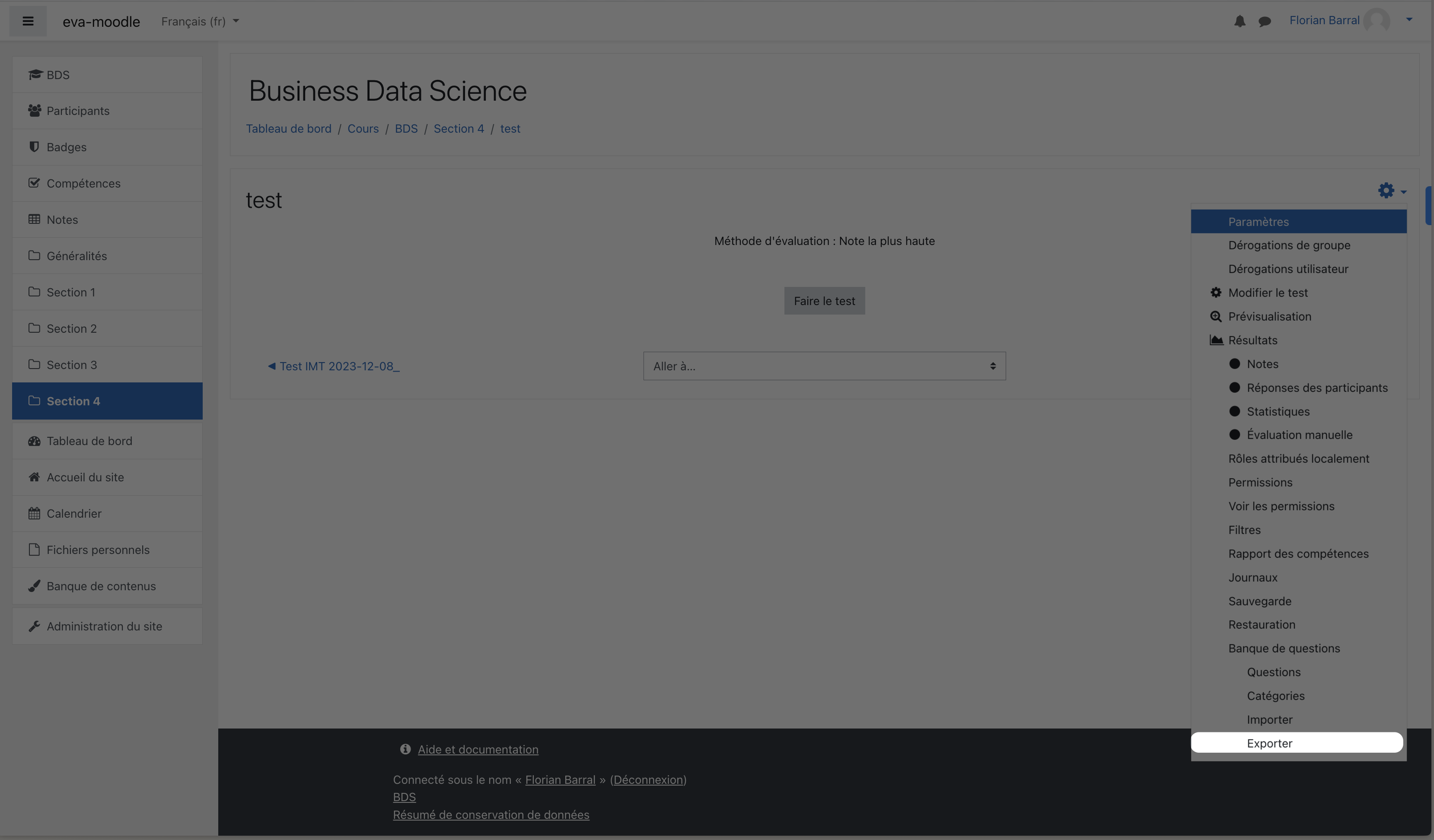
In Moodle, open your quiz or your question bank.
Open the question bank's Export page.
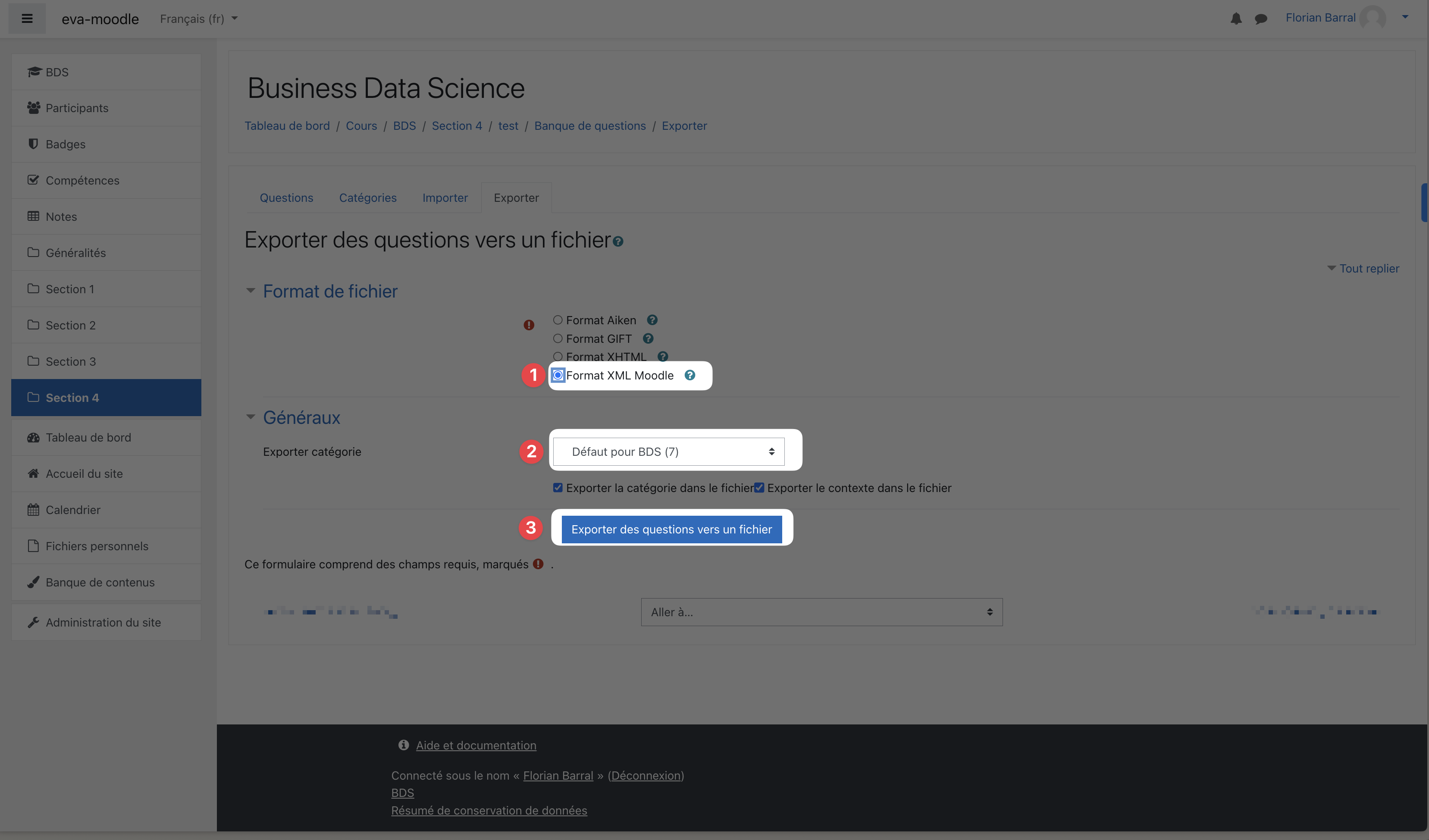
Choose the Moodle XML format, select the question category, then click Export questions to file.
2. Import the file into Papeez
In the Create › Subject tab, click Import. The button shows as long as the subject is empty; otherwise, go through the exam's ⋮ menu › Import › Subject.
Choose Moodle XML and drop the
.xmlfile.
An import replaces the whole subject: sections, exercises and questions. Import before generating the copies: once the copies are generated, the subject can no longer be edited (except points, correct answers, tags and grading comments).
What gets imported
Not carried over: grade percentages per answer (fractions), question feedback and answer numbering. Check the correct answers and the points after the import.
Was this helpful?
Still need help? Ask the team