Understand the answer sheet
The boxes, the markers and the barcode of the sheet your participants fill in.
Written By Florian Barral
Last updated 9 days ago
The answer sheet is the only sheet Papeez reads when scanning. Participants fill in the boxes of their answers on it; the questions are on the question sheets.
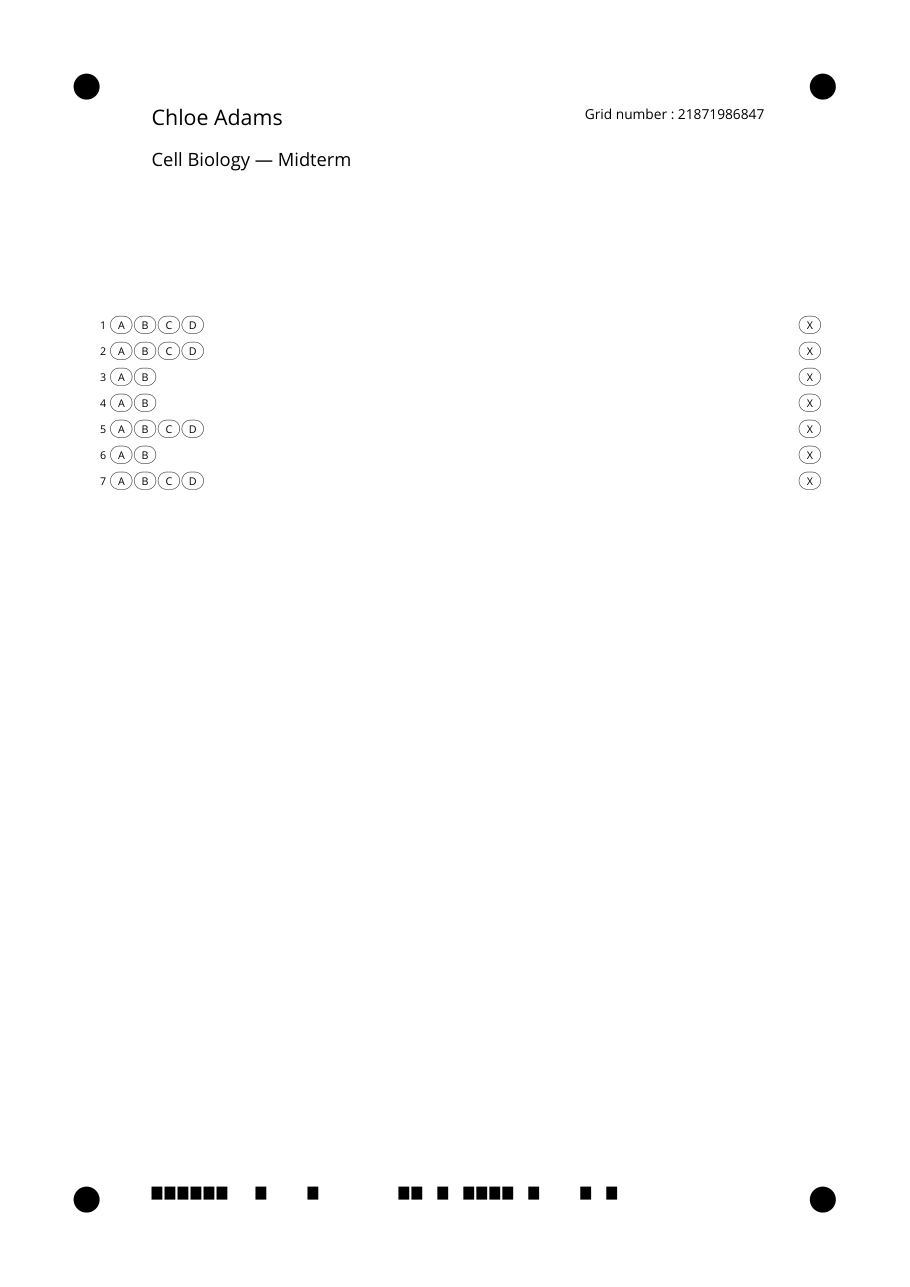
What is on the sheet
The four black dots in the corners are markers used to read the page. They must stay visible on the scan: do not staple or write on them.
The barcode at the bottom identifies the copy: it links the sheet to the right question sheets and, in nominative mode, to the right participant.
One row per question, with one box per choice (A, B, C…). True/False questions have two boxes.
A column of "X" boxes on the right is used to calibrate the reading. They must never be filled in.
In anonymous mode, fields for the first name, last name and student number, which the participant fills in. In nominative mode, their name is already printed. See Nominative or anonymous copies.
Fill in the sheet correctly
Remind your participants of these rules. They are printed at the top of the question sheet:
use a black ink pen;
fill the box completely, without going over;
if you make a mistake, use correction fluid, without redrawing the box.
You can edit these instructions and every text printed on the sheet: see Customize the instructions and sheets.
Print only the answer sheets
In the Print tab, once the copies are generated, choose Download copies, then Answer sheets only. Each answer sheet stays linked to its copy by its barcode: hand it out with the question sheet that bears the same number. See Generate the copies to print.
Papeez only reads the answer sheets it generated for this exam. A grid printed from another tool is not recognized. To scan the filled-in sheets, see Import the scans.
Was this helpful?
Still need help? Ask the team